Accurately setting Contrast is a key step in display calibration and is essential for achieving the maximum dynamic range. The Contrast control determines the display’s peak white level by adjusting the amplitude of the video signal. This establishes how much difference there is between the darkest and brightest parts of the image. The goal is to find the highest Contrast setting that maintains accurate picture reproduction without compressing the red, green, or blue peak video levels.
Contrast is typically evaluated using a test pattern that consists of a 100% white background with one or more bright bars overlaid. The display’s peak white level is increased until raising it further begins to compress the RGB signals. This may appear as color shifting in the bright bars when the signals compress separately, or as the bright gray bars visually blending into the white background when they compress together.
Note: If the calibration includes adjustments to multiple grayscale or gamma control points (for example, 10-point grayscale), do not readjust the Contrast or peak white level after completing grayscale or gamma calibration.
Clipping
After manually setting Brightness and Contrast by eye, it is important to perform an additional clipping check. Some forms of clipping may not be obvious when using standard visual test patterns, so this secondary verification helps confirm that the display is processing peak signal levels correctly.
This check allows you to identify whether clipping is occurring in a single color channel or in multiple channels, or whether all channels are being clipped uniformly. The examples below illustrate how each of these conditions appears in the measurement data.
Clipping in green and red: |
All Channels Clipping: |
All Channels tracking uniformly: (Ideal) |
|
|
|
|
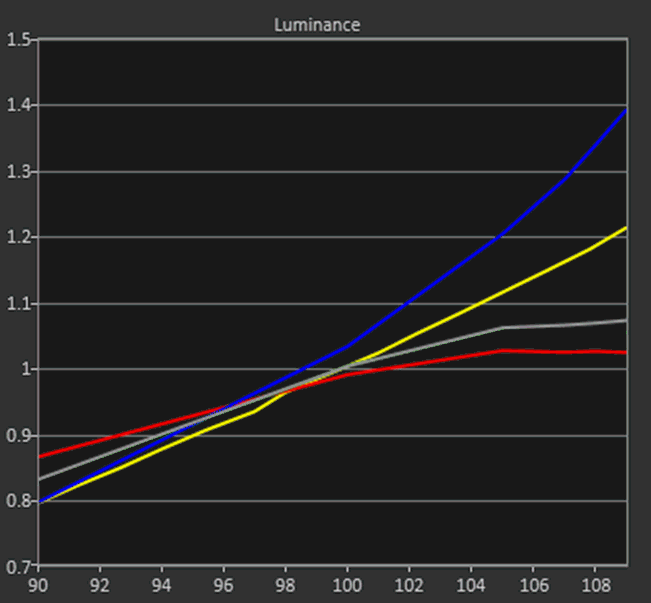
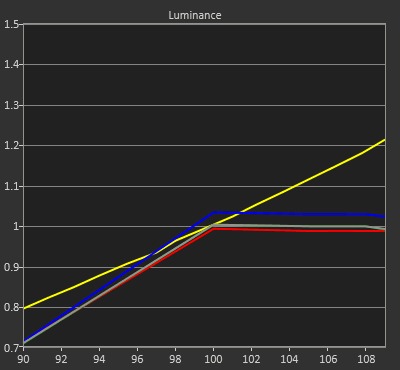
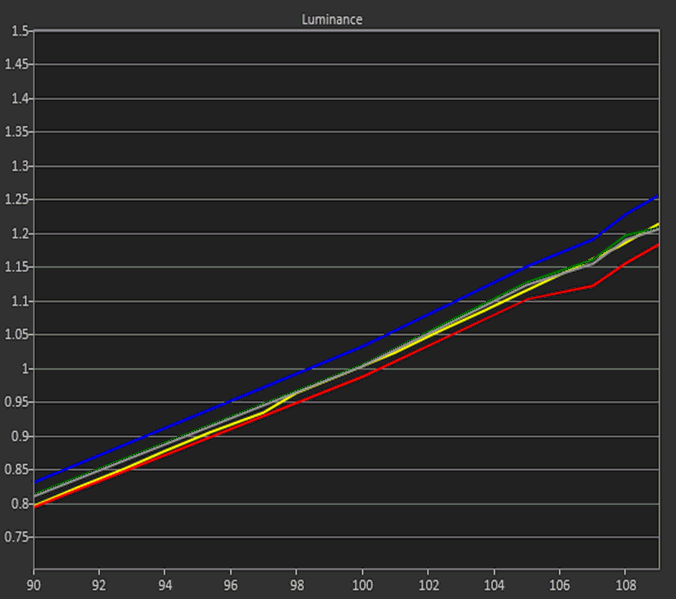
In these charts, the goal is for all three color channels (red, green, and blue) to track together and align closely with the luminance target line. When all channels follow the same curve, the display is reproducing highlight detail accurately and maintaining proper color balance.
If one or more channels begin to flatten while the others continue to rise, this indicates channel-specific clipping. For example, in the first chart, the red and green channels flatten near the top of the range while blue continues tracking with the target. This behavior shows that the display cannot produce additional red or green output beyond that point. In this case, lowering the Contrast setting can often bring the channels back into alignment.
Some displays will instead exhibit hard clipping, where all three channels abruptly flatten at the same point. Hard clipping can occur for two reasons:
-
The Contrast setting is too high and is forcing all channels to clip together, which can usually be corrected by reducing Contrast.
-
The display is intentionally designed to clip above a certain signal level and simply cannot show additional detail beyond that point.
If the display hard clips by design, further adjustment will not recover highlight information. In this situation, the aim is simply to ensure that all three channels track together cleanly up to the clipping point.
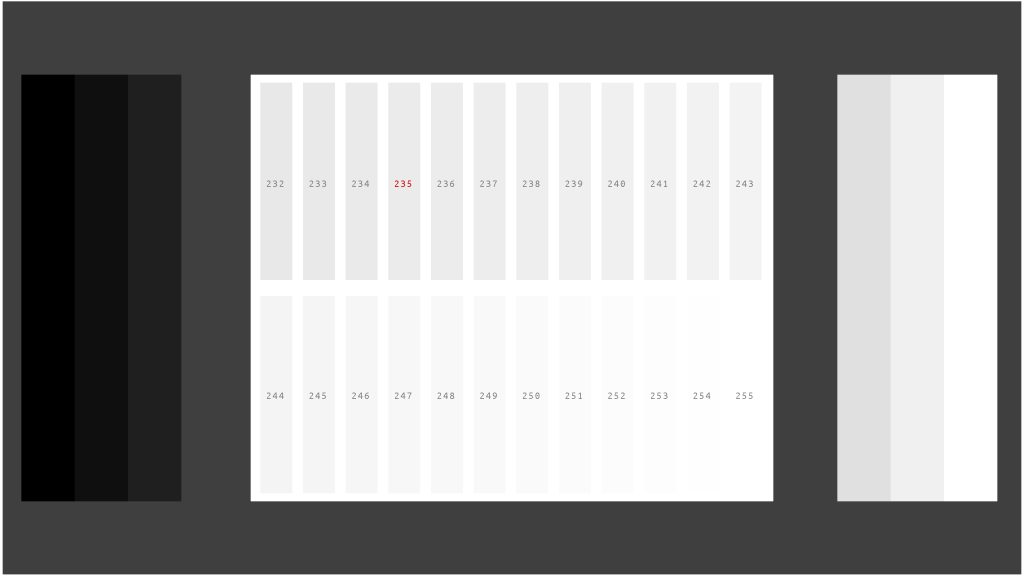
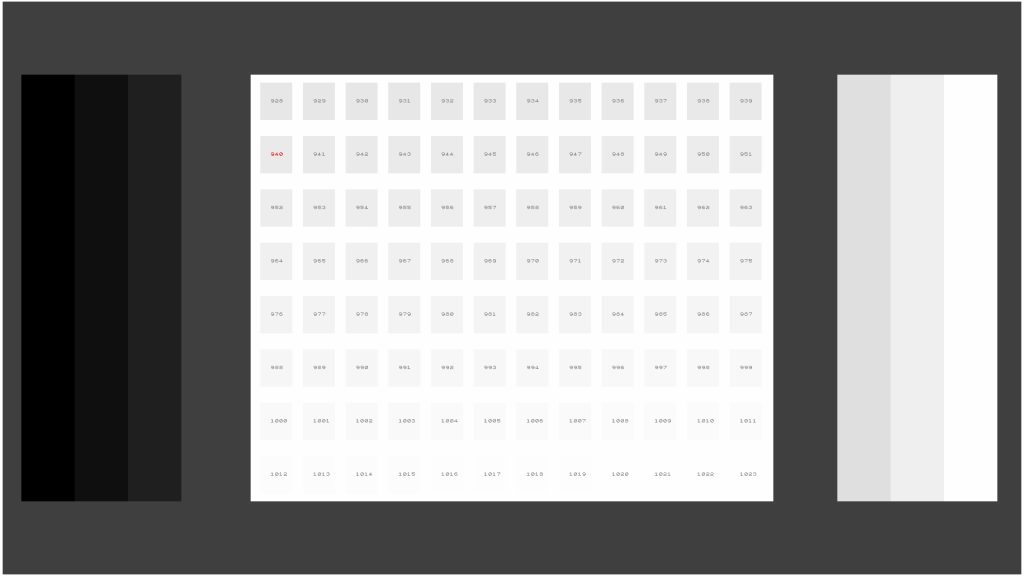
Below are examples of the Contrast patterns included on the Portrait Displays G1, they will vary slightly based on the output bit level. Other Contrast PLUGE patterns will be constructed similarly
|
|
|
| Contrast Pattern (8-bit) | Contrast Pattern (10-bit) |
How to use:
- Pattern contains RGB values ranging from 232-255 (928-1023 when operating in 10-bit output) and dark and bright bars to the left and right of the main area to show discoloration and black-level interactivity when changing contrast
- 8-bit
- If the contrast (white level) is set correctly on a display that is set to show extended-range video signals you should see all 23 steps (232-254) of the contrast pattern without any clipping or discoloration when the G1 Range setting is set to Limited (SMPTE video range)
- If the contrast (white level) is set correctly on a display that is set to show legal range video signals you should see all 3 steps (232-234) of the contrast pattern without any clipping or discoloration when the G1 Range setting is set to Limited (SMPTE video range)
- If the contrast (white level) is set correctly on a display that is set to show full range pc signals you should see all 23 steps (232-254) of the contrast pattern without any clipping or discoloration when the G1 Range setting is set to Full
- 10-bit
- The Contrast pattern is rendered differently in 10-bit to show the same information but at greater precision with four times as many steps
- If the contrast (white level) is set correctly on a display that is set to show extended-range video signals you should see all steps (928-1022) of the contrast pattern without any clipping or discoloration when the G1 Range setting is set to Limited (SMPTE video range)
- If the contrast (white level) is set correctly on a display that is set to show legal range video signals you should see steps 928-39 of the contrast pattern without any clipping or discoloration when the G1 Range setting is set to Limited (SMPTE video range)
- If the contrast (white level) is set correctly on a display that is set to show full-range video signals you should see all steps (928-1022) of the contrast pattern without any clipping or discoloration when the G1 Range setting is set to Full