Some Calman reports may appear incorrectly cropped when exported to PDF. This issue is caused by an incorrect page orientation selected during printing. Adjusting the printer orientation resolves the problem.
Exporting a Report to PDF
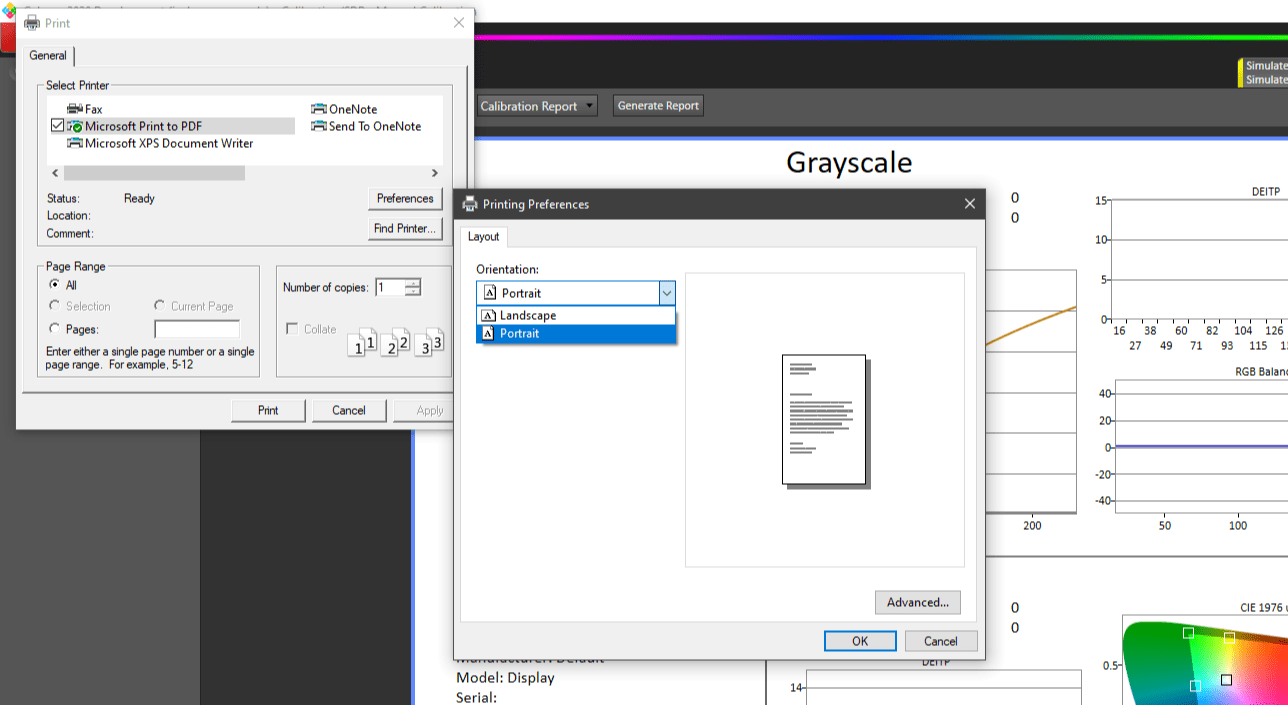
- In Calman, open the report and click Print Report.
- In the print dialog, select Windows PDF Printer.
- Click Preferences.
- Set the page orientation (Portrait or Landscape) to best fit the report layout.
- Click OK to save the settings.
- Print the report and choose a save location when prompted.
This will generate a PDF of your report as it would have been printed onto paper, respecting proper orientation.
If printing to paper…
- In Calman, open the report and click Print Report.
- Select your physical printer in the print dialog.
- Click Preferences.
- Adjust the page orientation to fit the report.
- Click OK, then print the report.