Calman can guide the calibration of the Dell UltraSharp 32 4K QD-OLED Monitor (U3226Q) in SDR and HDR modes, delivering accurate color and luminance performance using a 1D and 3D LUT. The U3226Q features a 31.5″ QD-OLED panel with 99% DCI-P3 coverage and VESA DisplayHDR True Black 500 certification, making it well-suited for color-critical workflows.


Calman Required Version
- Calman Studio or Ultimate v5.17.3 or higher
Hardware Requirements
- Dell UltraSharp 32 4K QD-OLED Monitor (U3226Q)
- Dell Internal Colorimeter
- For external meters: Calman Compatible Meter
- Dell Internal Pattern Generator
- For external generators: Calman Compatible Pattern Generator
Step 1
- From the Calman Menu in the top-left, choose Open Workflow Template -> Calman Ready and then Dell U3226Q Calibration.
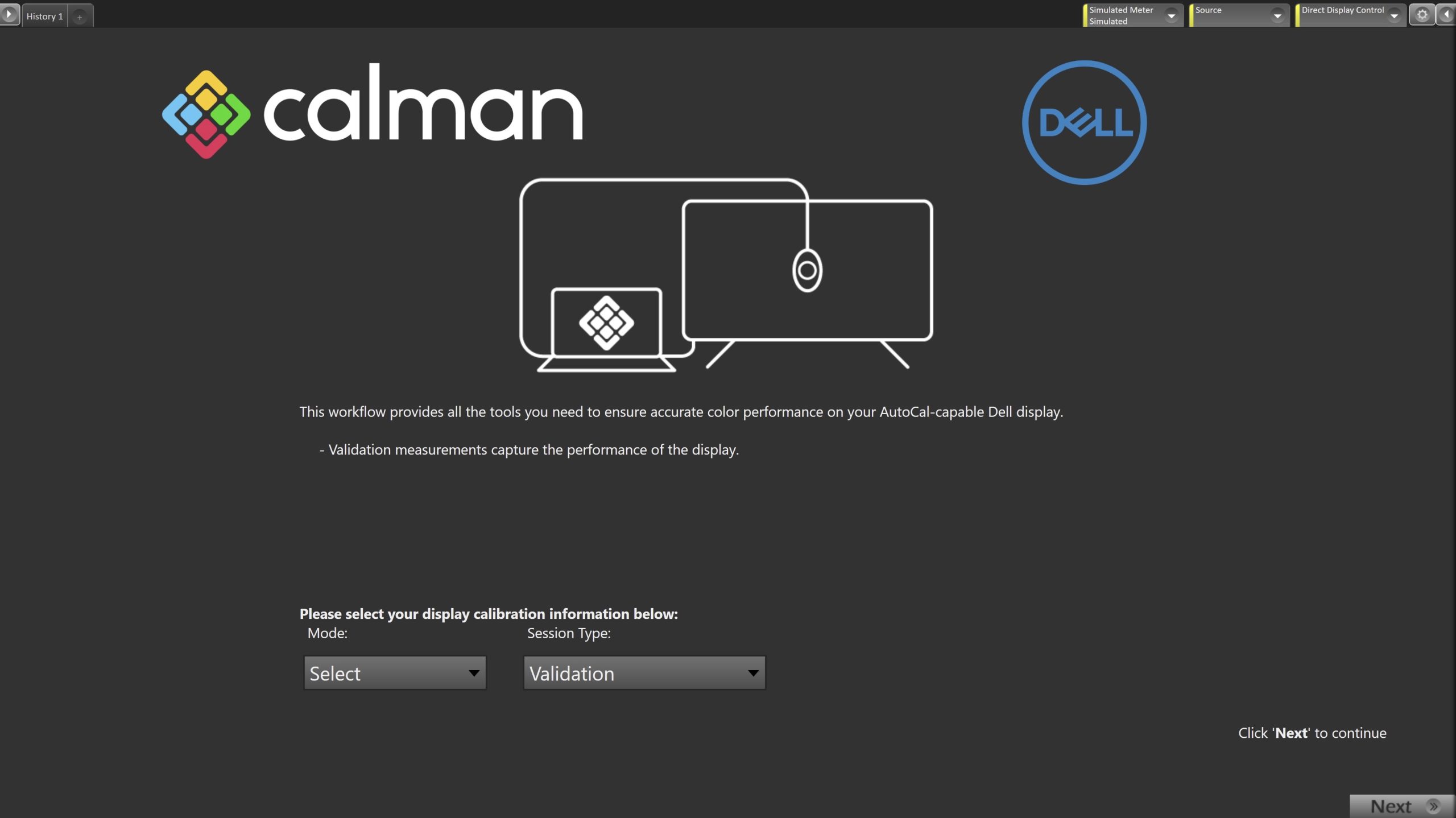
- On the introduction screen, select your calibration mode (SDR/HDR) and session type (Calibration+Validation, or Validation only) from the dropdown and click Next to proceed to Hardware Setup
- Validation only sessions will only take measurements of the current state and upload the validation data to the monitor
Step 2
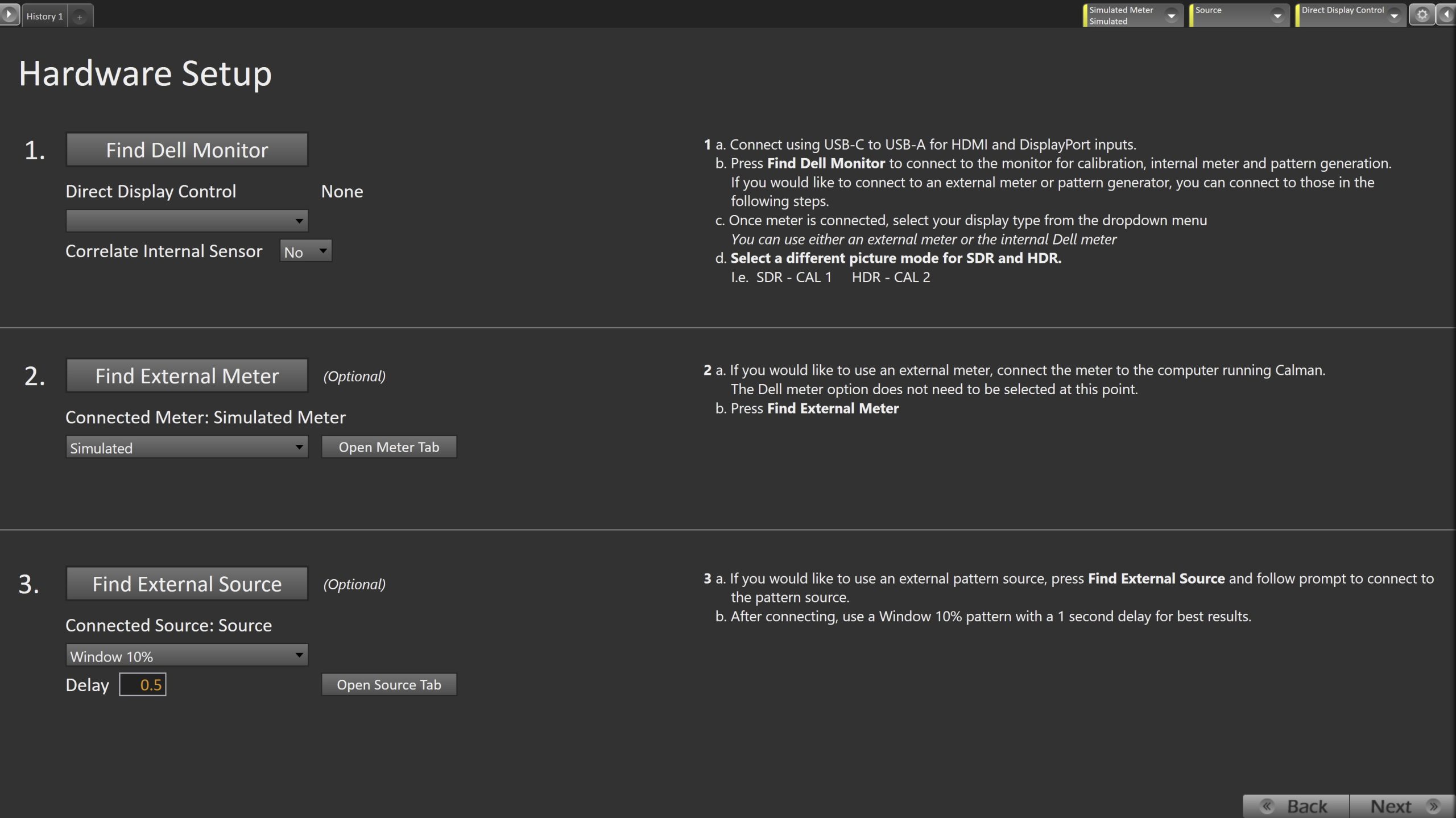
- Connect to the monitor, its built-in colorimeter and pattern generator:
- Connect the monitor to your computer using a USB-C to USB-C (Thunderbolt/USB4) or USB-C to USB-A cable.
- Click the Find Dell Monitor button to connect the monitor for calibration, using its built-in colorimeter and pattern generator.
- To use an external meter or pattern generator instead, these can be connected in the following steps.
- Once connected, select your display type from the dropdown menu.
- You may use either the monitor’s built-in colorimeter or an external meter.
- Select a picture mode for each calibration type:
- SDR: CAL 1
- HDR: CAL 2
|
Note:
|
- Click Next to proceed
Step 3
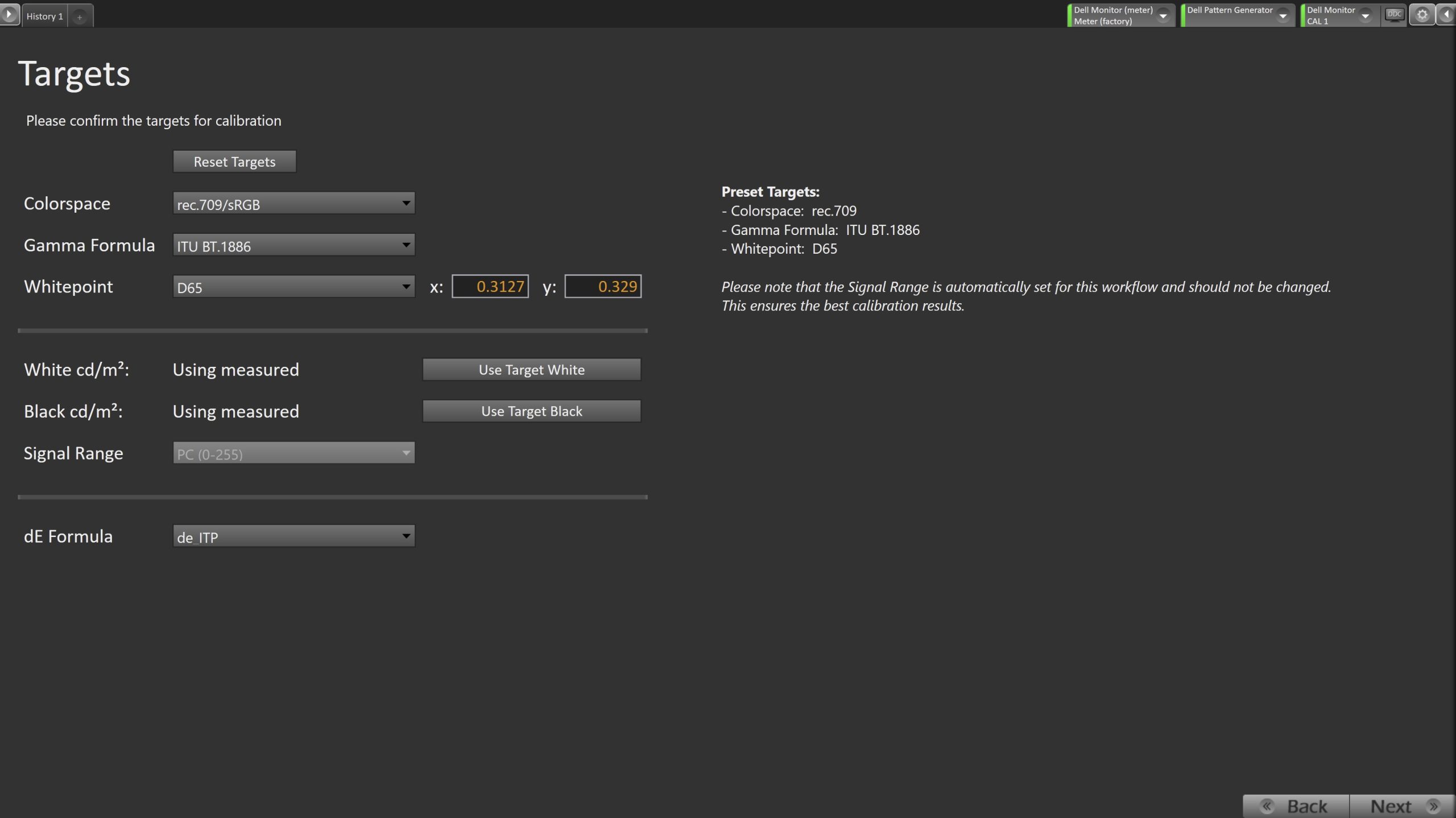
- Select the calibration targets
- Confirm/configure your calibration targets. These will be automatically set to common defaults by the options from Step 1
- Configuration Examples:
| SDR | HDR |
 |
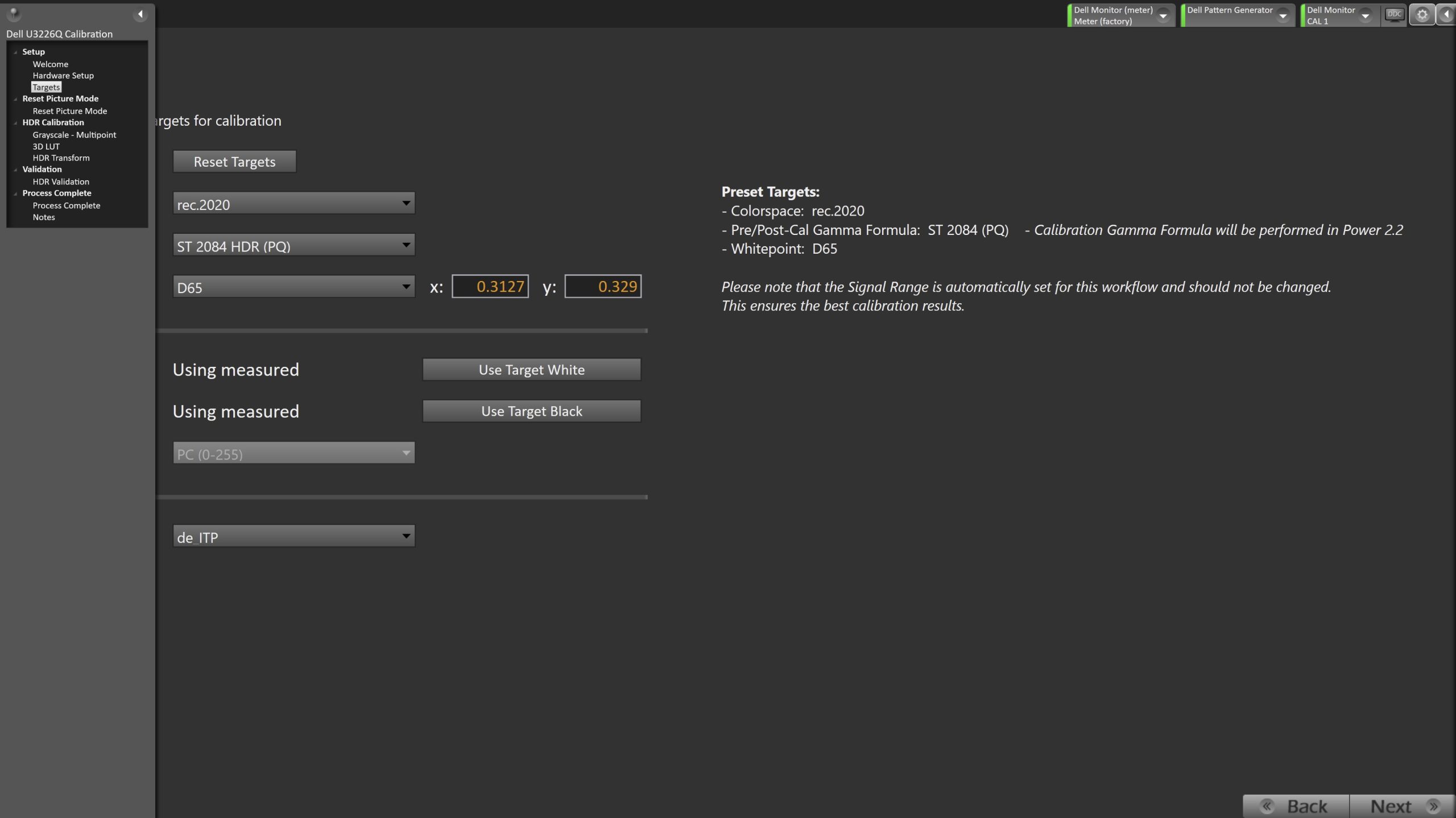 |
- Confirm your targets, and click Next to proceed
- Note: For Validation only sessions, please skip to Step 9.
Step 4
- This workflow page is intended to document the target picture mode prior to calibration.
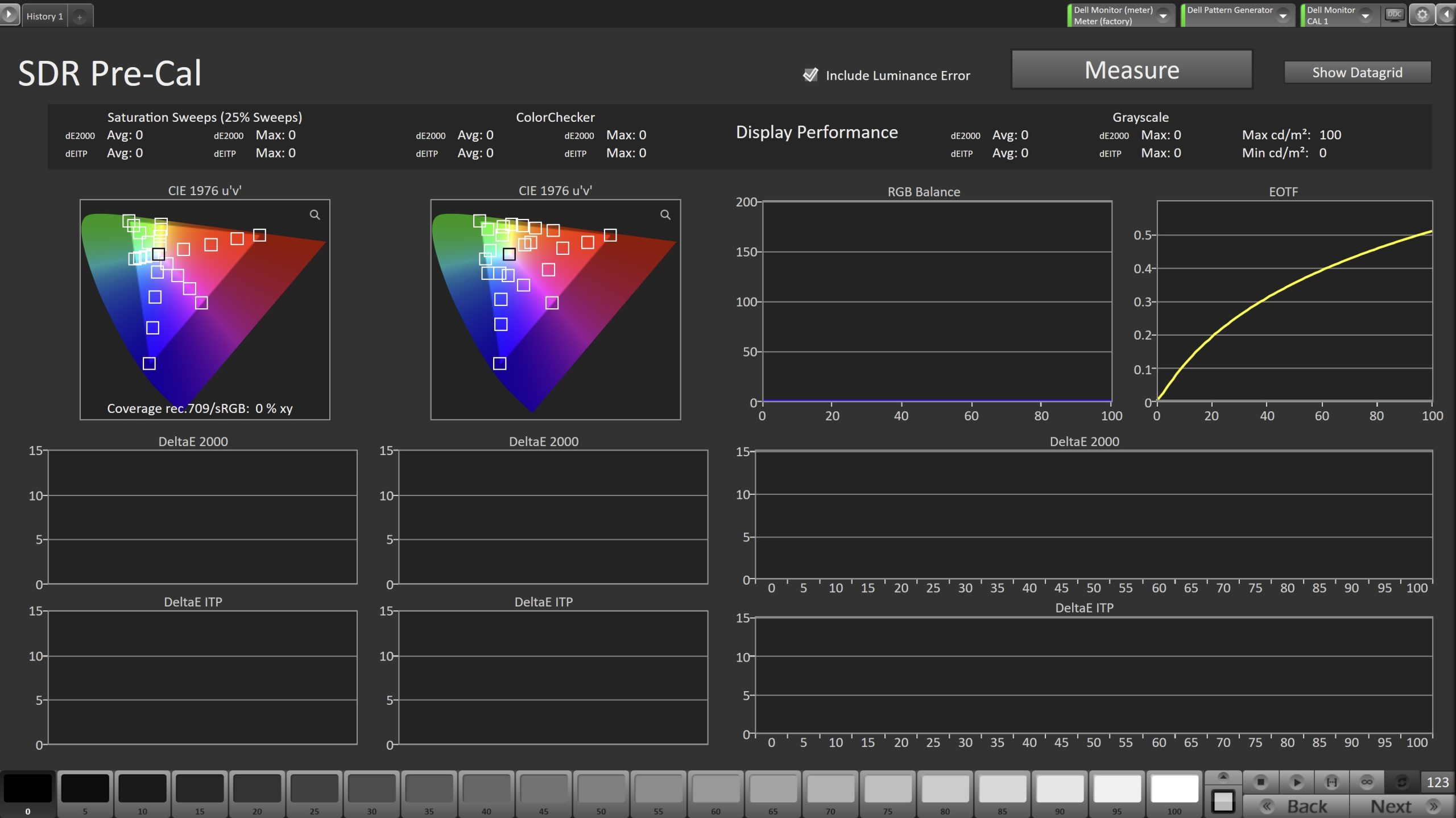
- To take Pre-Calibration Measurements, click the Measure button to measure the display’s grayscale and color response.
- This will provide a point of reference to compare the calibration results.
- Click Next to proceed
Step 5
- Here, the Calman picture mode will be reset to prepare for calibration.

- Click the Reset button. This resets and prepares the picture mode for calibration.
- The same mode cannot be used for both SDR and HDR calibration.
- Click Next to proceed
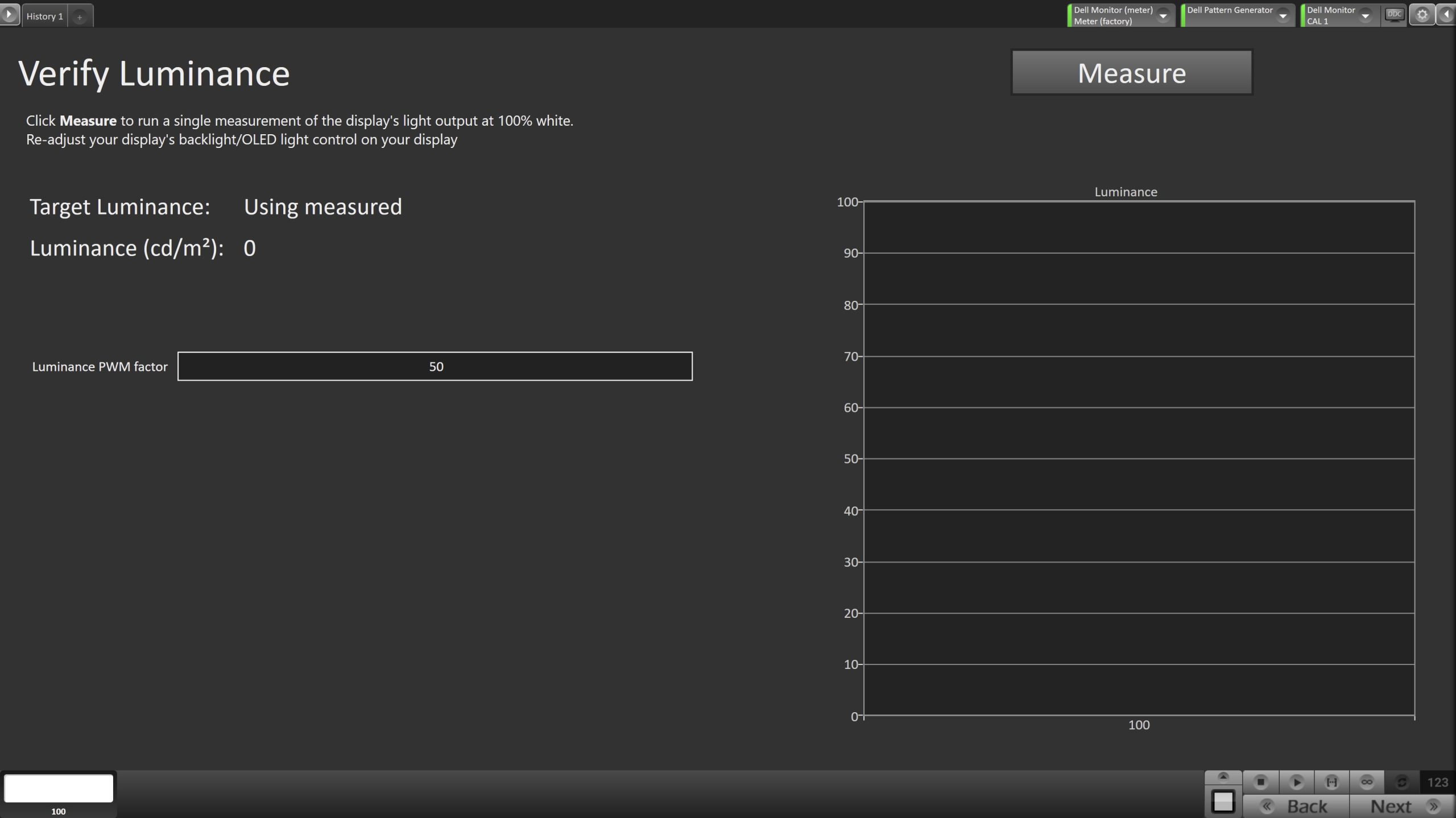
SDR Only – Measure and set Luminance
- Here, you can adjust the display’s Luminance PWM factor to meet or exceed your target luminance.
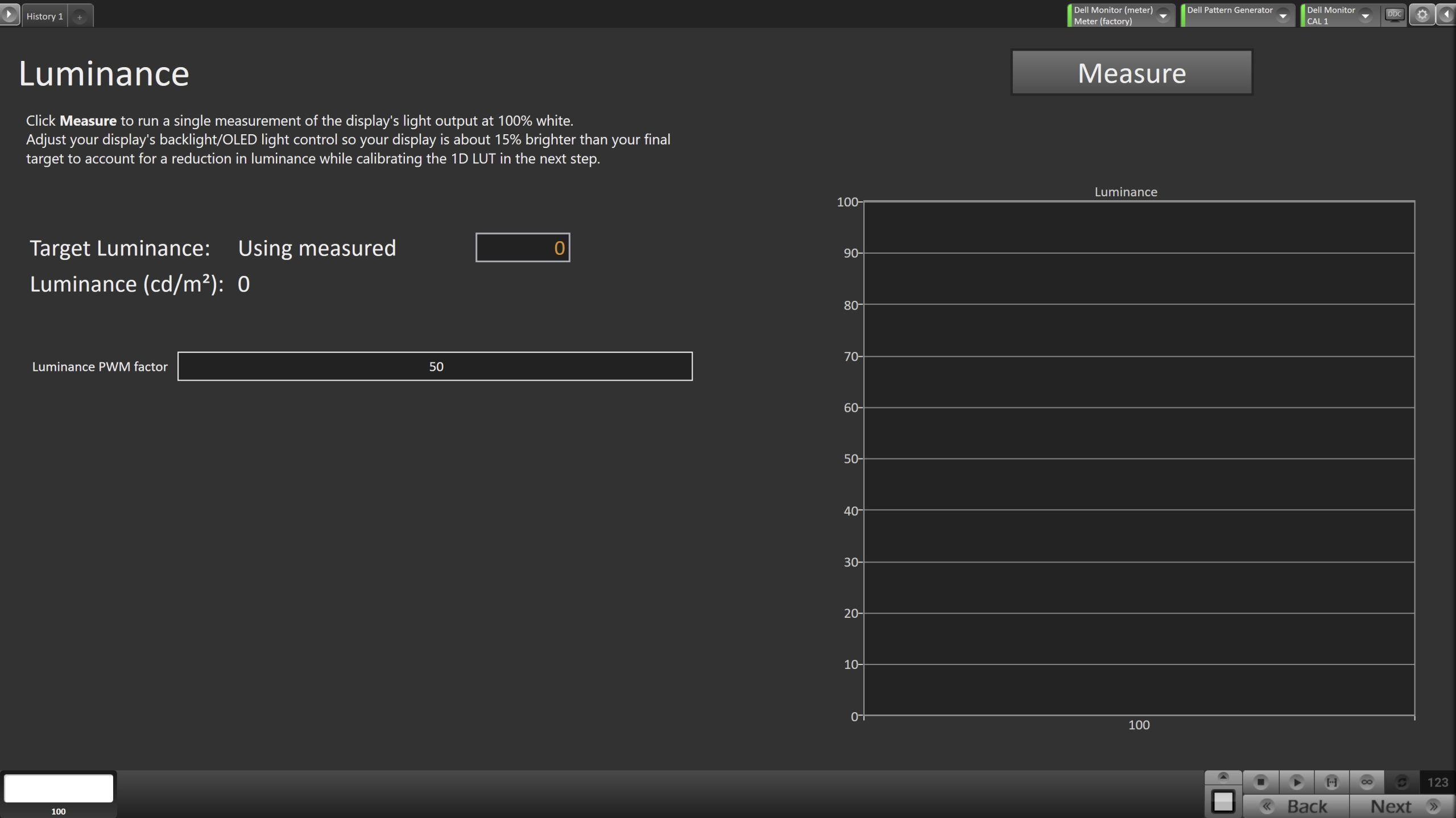
- Click Measure and adjust the Luminance PWM factor slider as needed.
- Click Next to proceed
Step 6
- Here, Calman will adjust the Multipoint Greyscale.
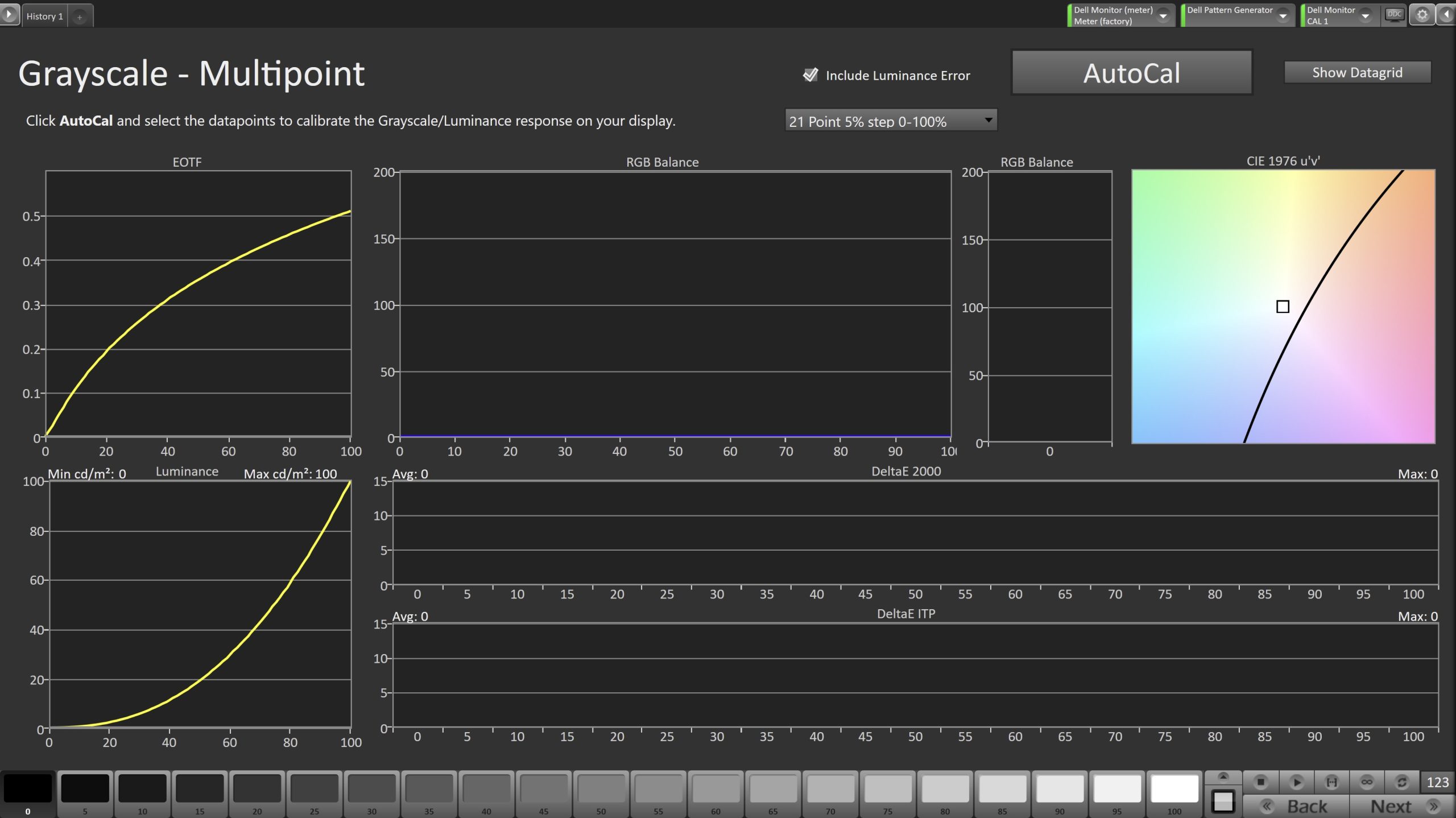
- Click the AutoCal button and select the correct data points in the AutoCal Dialog to auto-calibrate the Grayscale/Luminance response on the display.
- Click OK to begin greyscale AutoCal.
- When AutoCal is complete, click the Next button to proceed.
Step 7
- On this page, Calman will calibrate the Color Gamut using a 3D LUT.
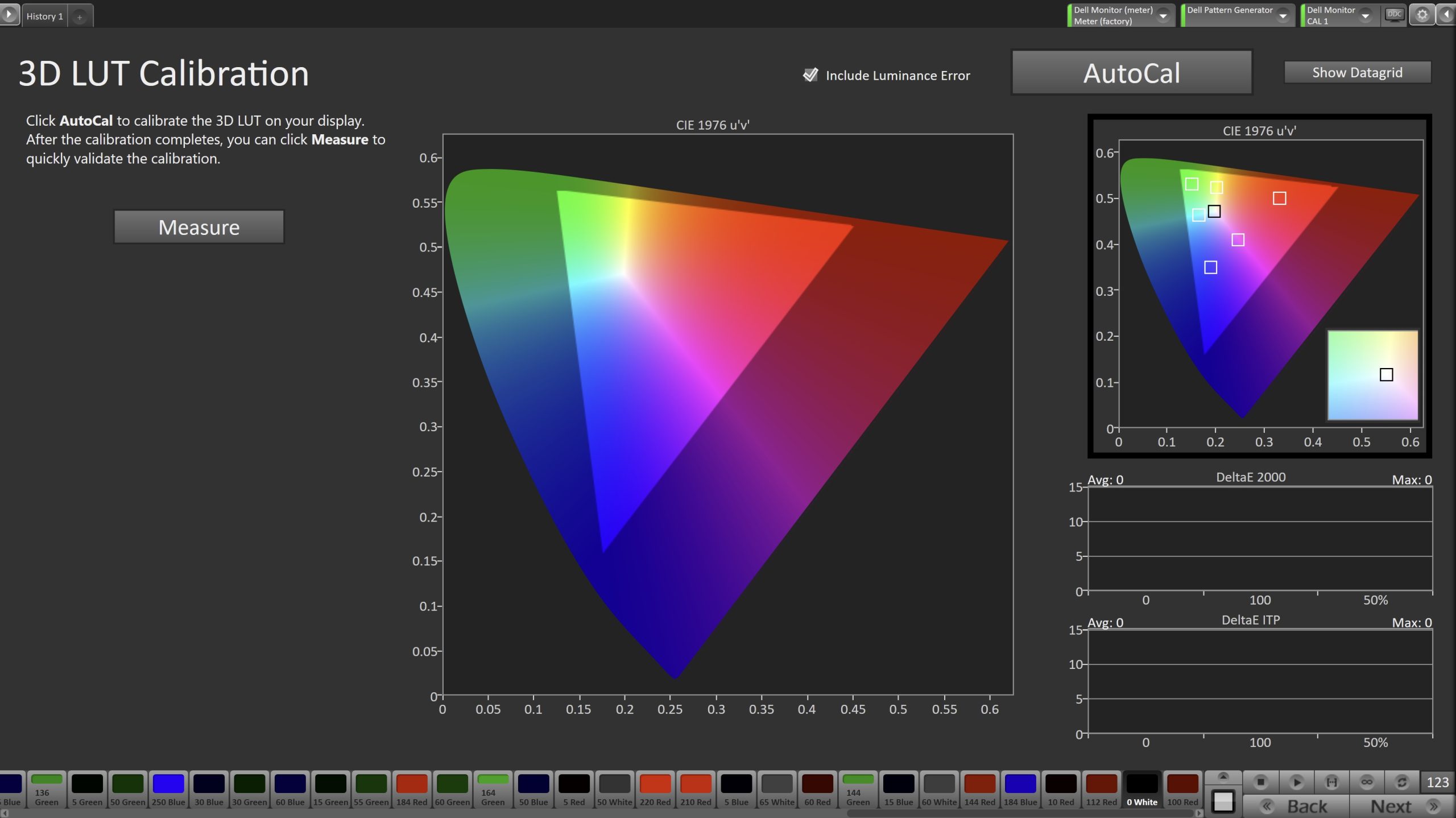
- Press the AutoCal button to open the AutoCal dialog
- Calman has multiple methods for creating a 3D LUT. For information about these LUTs see THIS ARTICLE.
- Confirm that 3D LUT Grayscale to Unity is checked
- Click OK to begin the colorspace AutoCal process
- When AutoCal is complete, press the Next button to proceed
Step 8
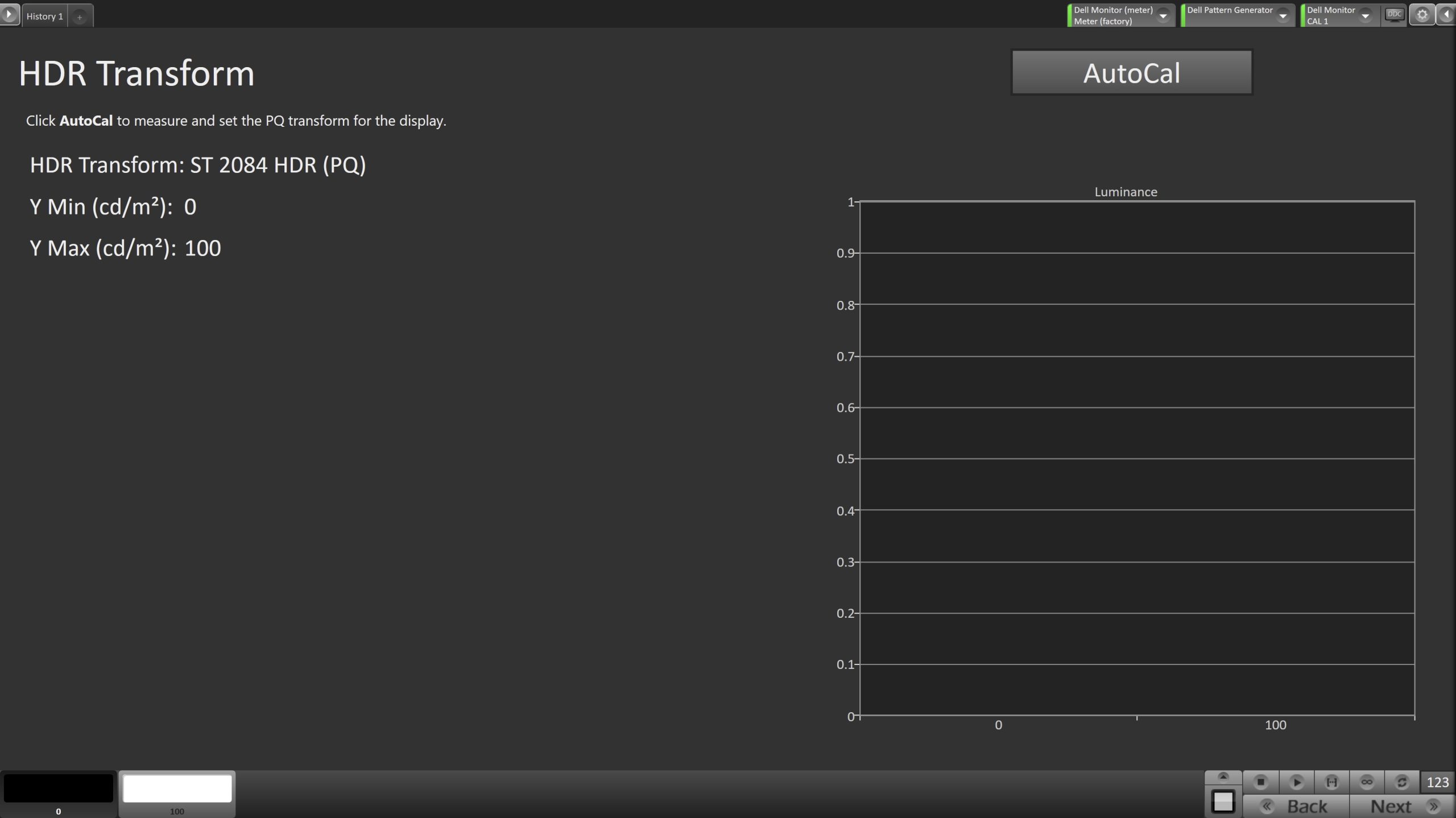
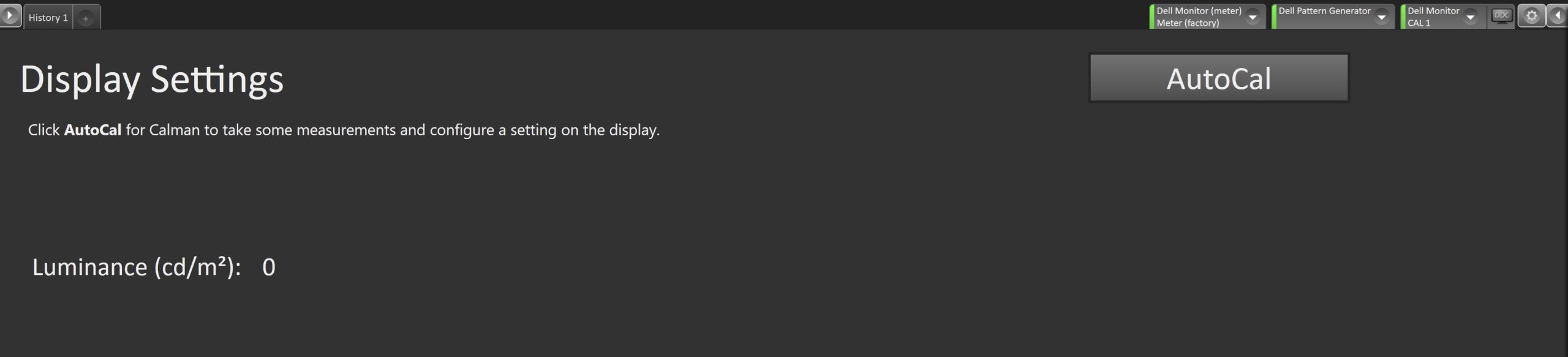
- This step will vary between SDR and HDR calibrations. For SDR calibrations, you will verify and readjust your luminance if needed. For HDR calibrations, you will be setting your HDR PQ transform.
| SDR | HDR |
 |
 |
|
|
 |
|
|
Step 9
- In this step, you’ll take measurements of the calibration results.
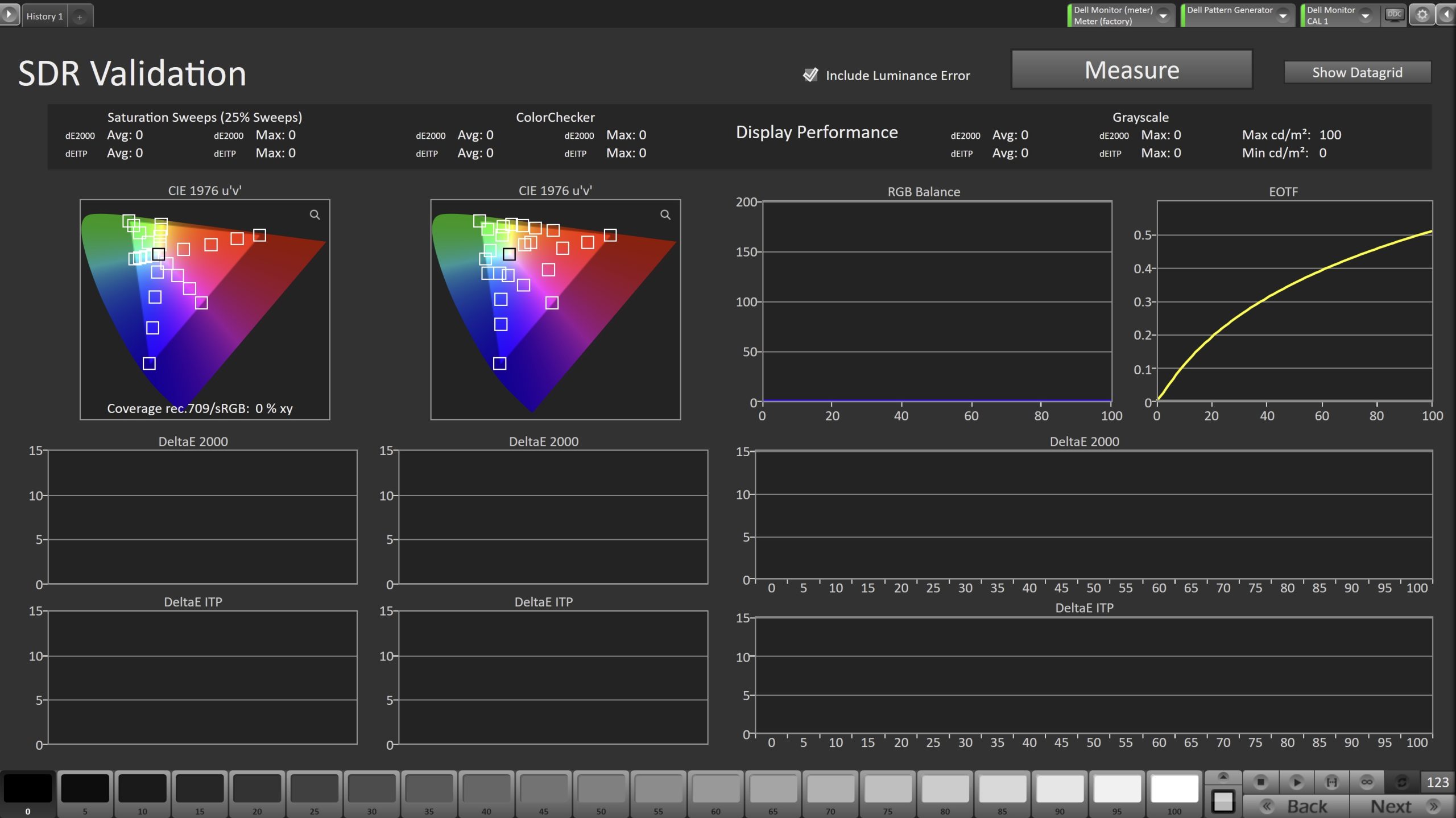
- To take Post-Calibration Measurements, click the Measure button to measure the display’s grayscale and color response.
- After the full Post-Calibration measurement has been completed, an additional set of measurements will be taken and uploaded to the monitor’s internal validation service. Please wait for this to complete before proceeding.
- Click Next to proceed
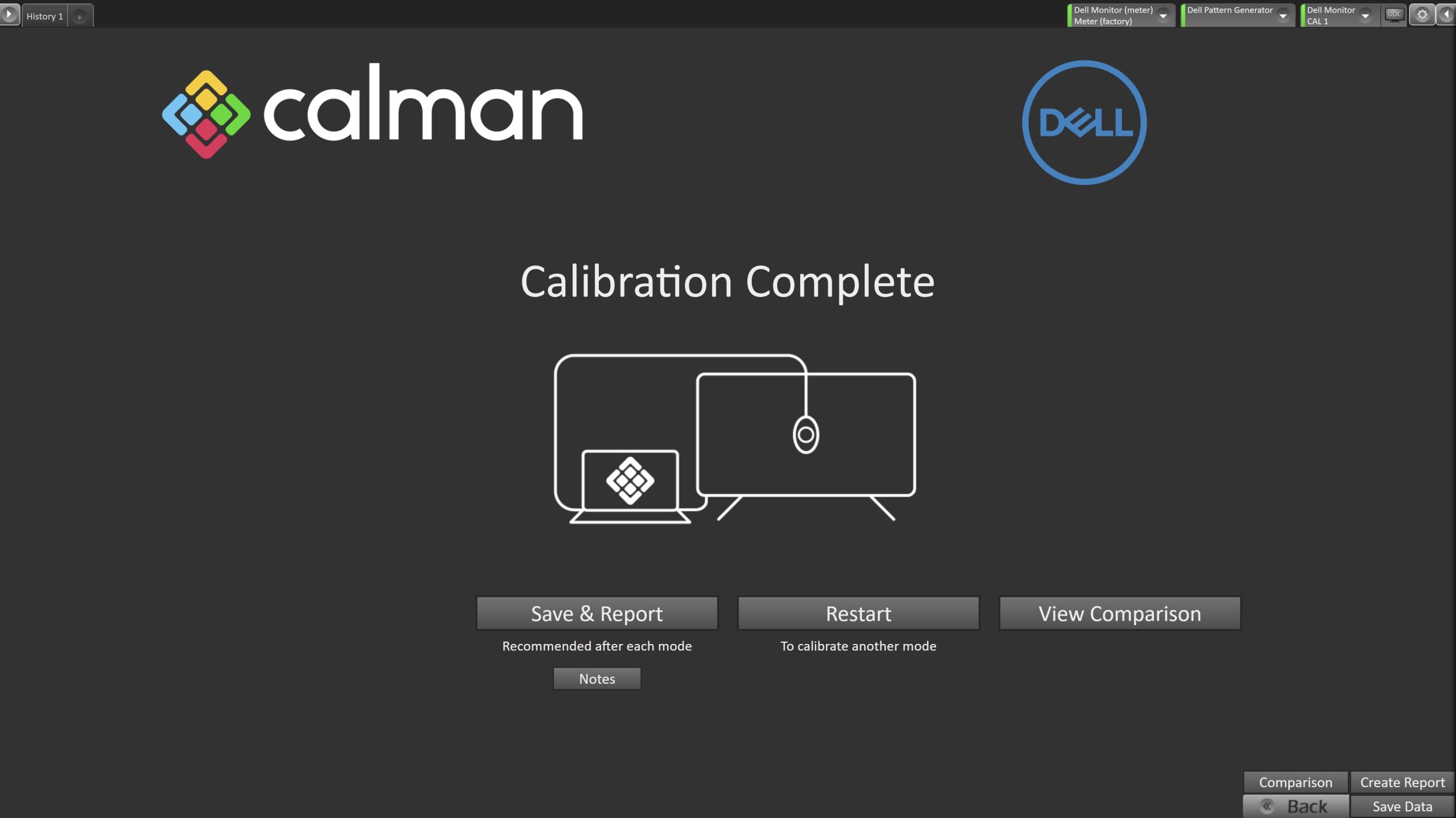
- On the Calibration Complete page, you can choose to…
- Save and Report
- Select Save and Report to generate the calibration report
- Restart
- Returns to the beginning of the workflow where a new mode or colorspace can be selected
- Note: Does not save workflow data
- View Comparison
- Displays Pre and Post Calibration measurements of the calibrated mode side-by-side
- Save and Report