Calman can guide the calibration of the Dell UltraSharp 32 HDR PremierColor Monitor (UP3221Q) in SDR and HDR modes, delivering accurate color and luminance performance using a 1D and 3D LUT. The UP3221Q features a 31.5″ IPS panel with a mini-LED backlight, 2,048 local dimming zones, 99.8% DCI-P3 coverage, and VESA DisplayHDR 1000 certification, making it well-suited for color-critical and HDR production workflows.


Calman Required Version
- Calman Studio or Ultimate v5.15.3 or higher
Hardware Requirements
- Dell UltraSharp 32 HDR PremierColor Monitor (UP3221Q)
- Calman Compatible Meter
- Dell Internal Pattern Generator
- For external generators: Calman Compatible Pattern Generator
Step 1
- From the Calman Menu in the top-left, choose Open Workflow Template -> Calman Ready and then Dell U3226Q Calibration.
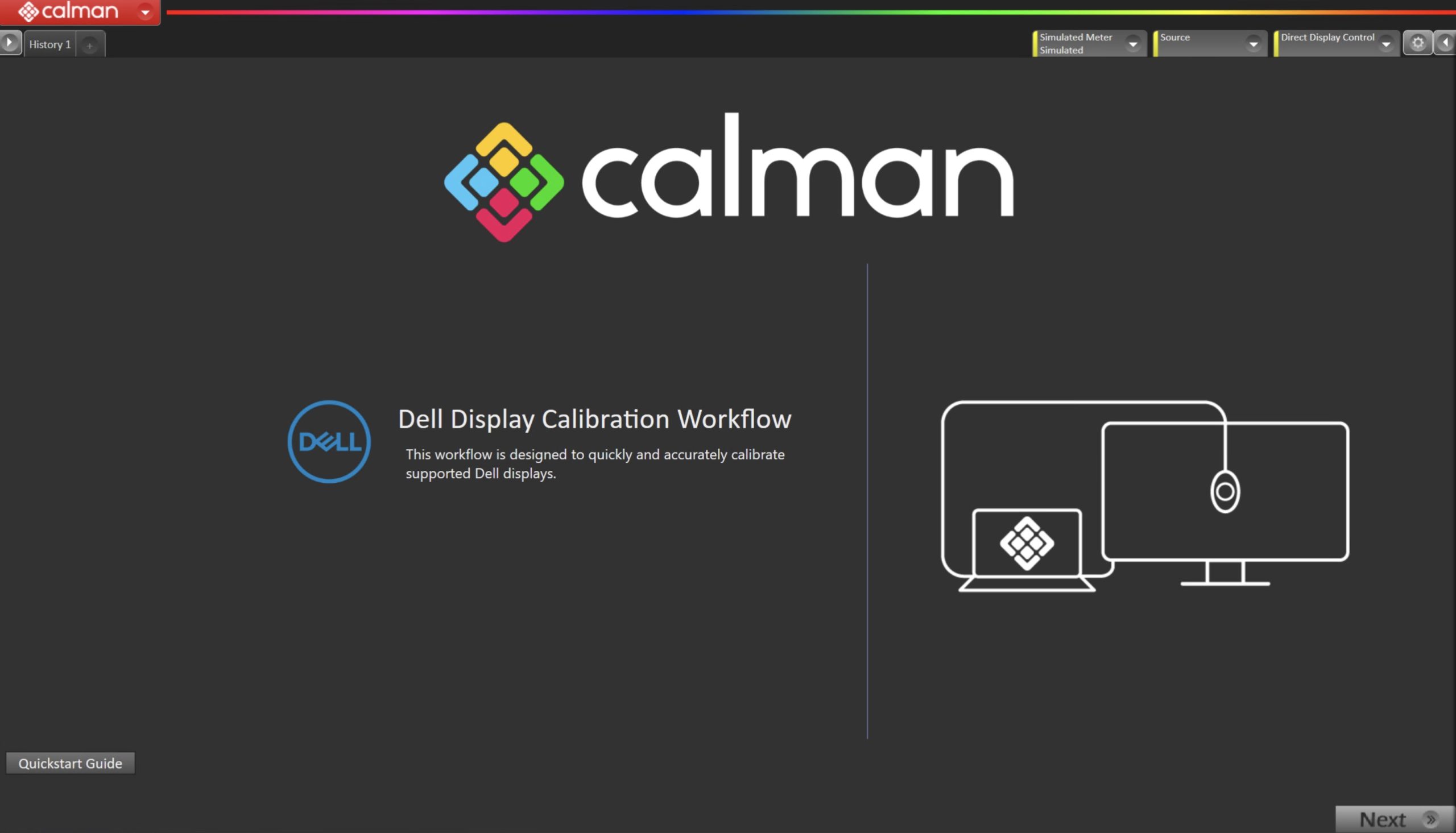
- Click Next to begin.
Step 2
- Here you will configure your calibration targets and modes.
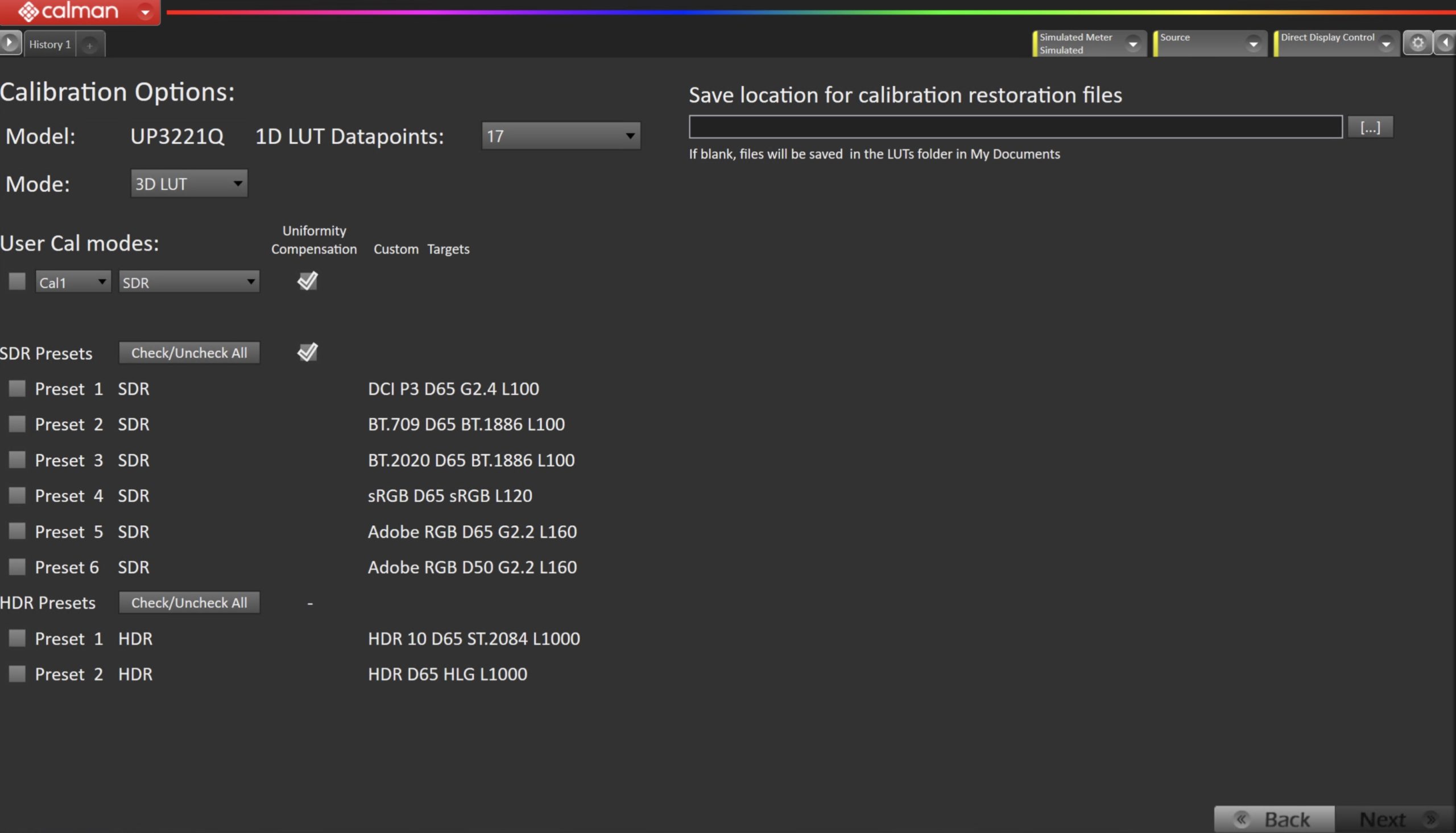
- Select Preset Modes to Calibrate:
- Calman for Dell can calibrate 6 SDR presets and 2 HDR presets. The target colorspace for each preset is listed to the right.
- Check the SDR and/or HDR presets you wish to calibrate for this session.
- (Optional) User Cal Modes:
- Cal1 and Cal2 are user-configurable picture modes that support custom calibration targets.
- User Cal modes must be calibrated separately — selecting a User Cal mode will make the built-in presets unavailable for that session.
- Select the desired colorspace and targets for the User Cal mode:
- Colorspace – Preconfigured at Rec.709/sRGB for SDR or BT.2020 for HDR.
- Whitepoint – Preconfigured at D65.
- Gamma Formula – Preconfigured at BT.1886 for SDR and ST.2084 for HDR.
- Luminance Target – SDR luminance is a subjective target; you may need to target higher to account for ambient light in your environment. Supported range is 45–250 cd/m².
- Dim room: 80–120 cd/m²
- Overhead lights: 120–160 cd/m²
- Bright room: 200+ cd/m²
- Uniformity Compensation can optionally be enabled for User Cal modes.
- Check the box next to each mode you wish to calibrate, then click Next to proceed.
Step 3
- Following the previous step, you will be automatically connected to the display and to the built-in pattern generator
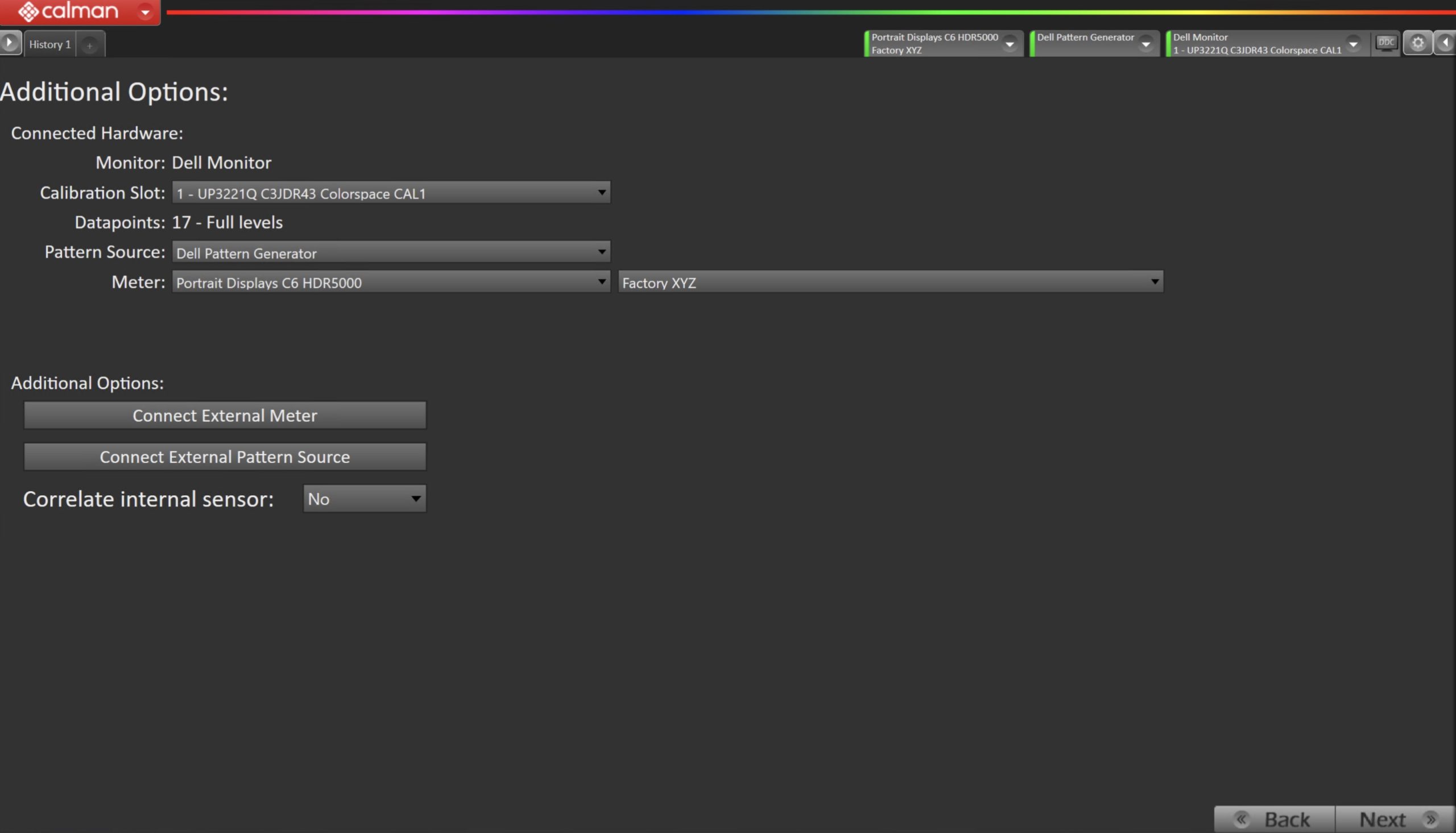
- Connect your external meter:
- Connect the meter to the computer running Calman.
- Press Connect External Meter.
- (Optional) To use an external pattern generator:
- Press Find External Source and follow the prompts to connect to the pattern source.
- After connecting, use a Window 10% pattern with a 1 second delay for best results.
- Press Find External Source and follow the prompts to connect to the pattern source.
- Click Next to begin calibration.
Step 4
- Calman will now take pre-calibration measurements, then begin the automated calibration process as specified in Step 2. Depending on your configuration, this may take an extended period of time.
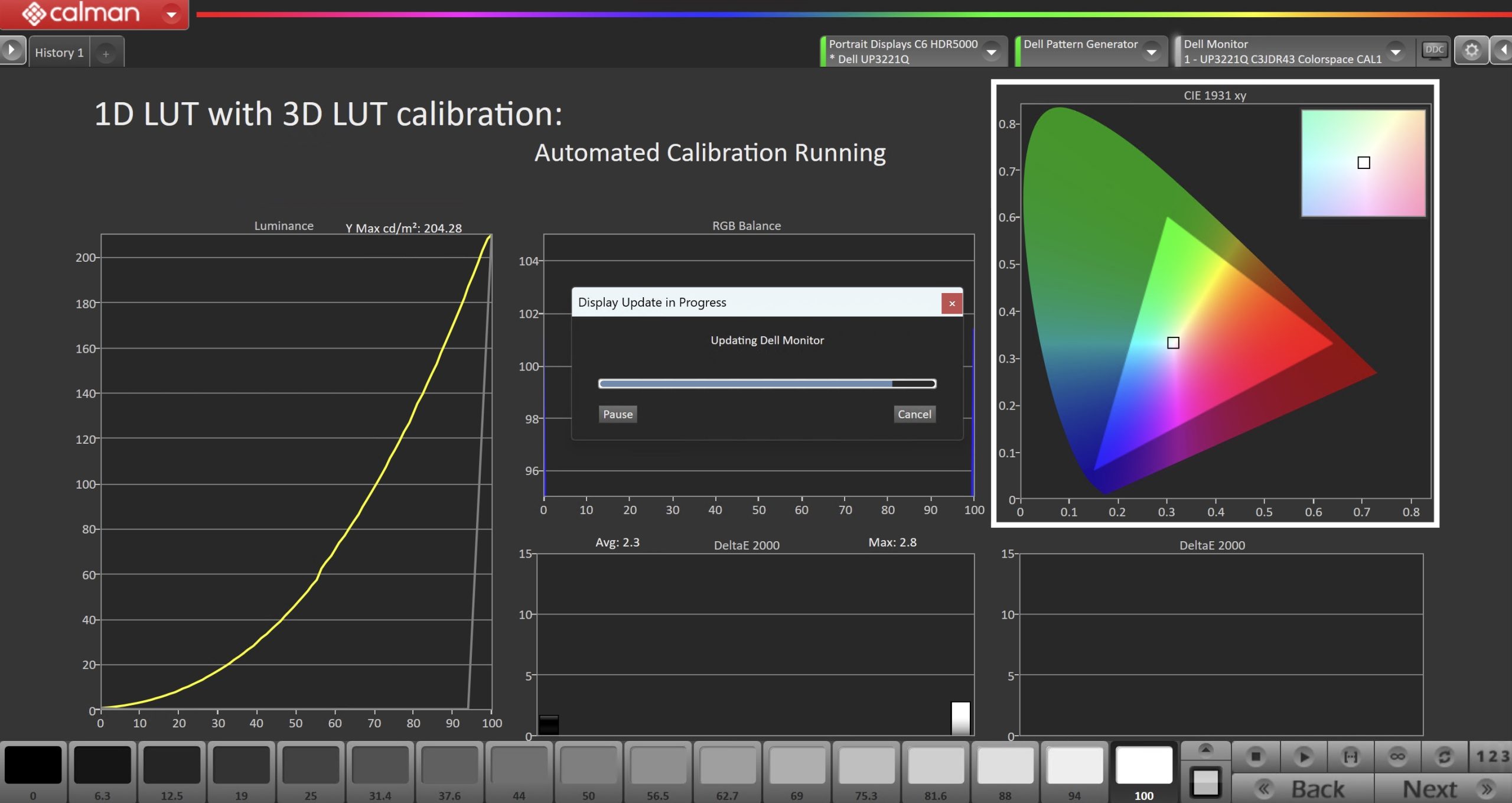
- Once complete, click Next to proceed.
Step 5
- In this step, measurements of the calibration results will be automatically taken.
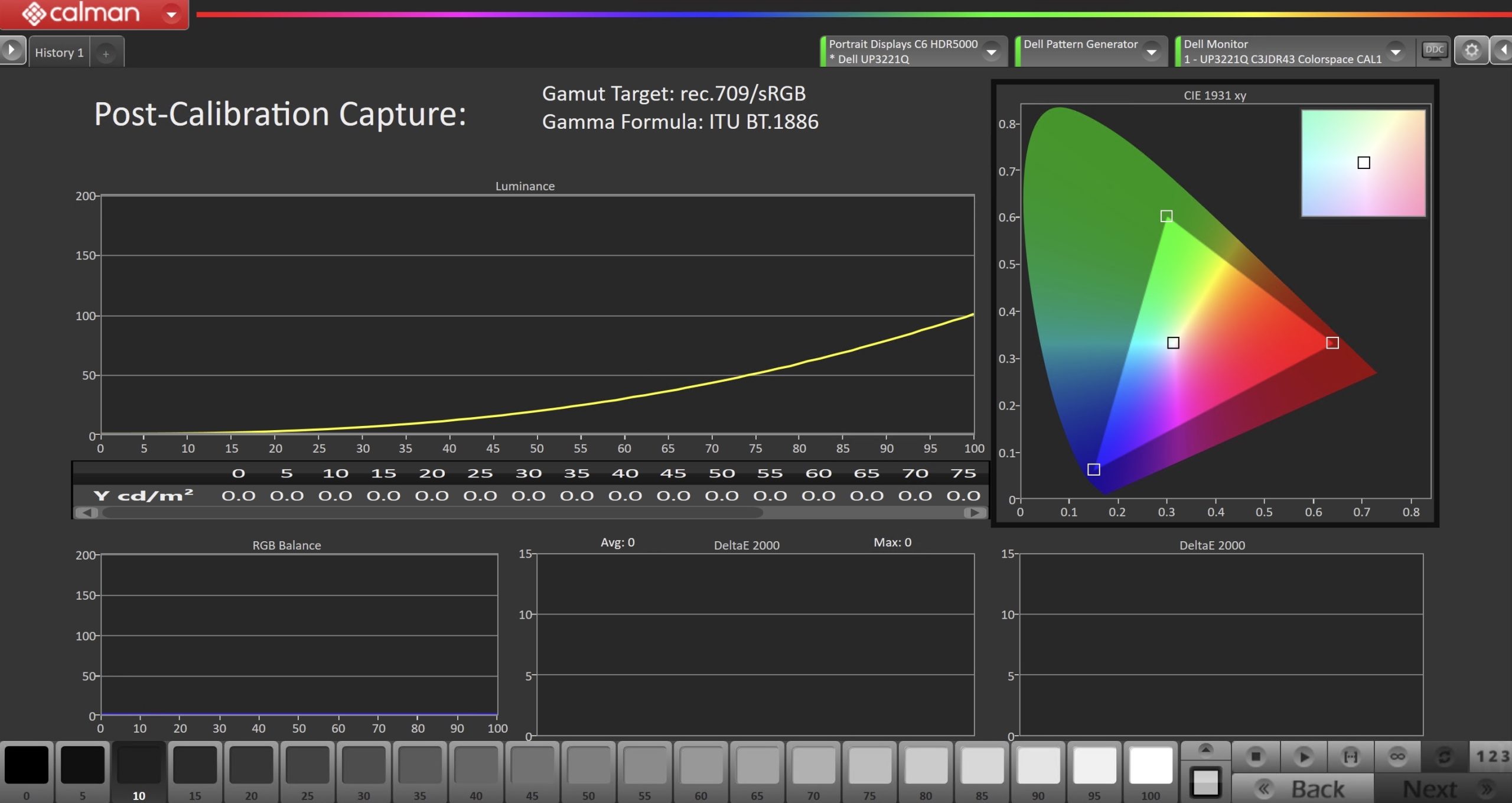
- After the calibration process has completed for all selected modes, Calman will present a confirmation screen showing the calibrated modes and targets…
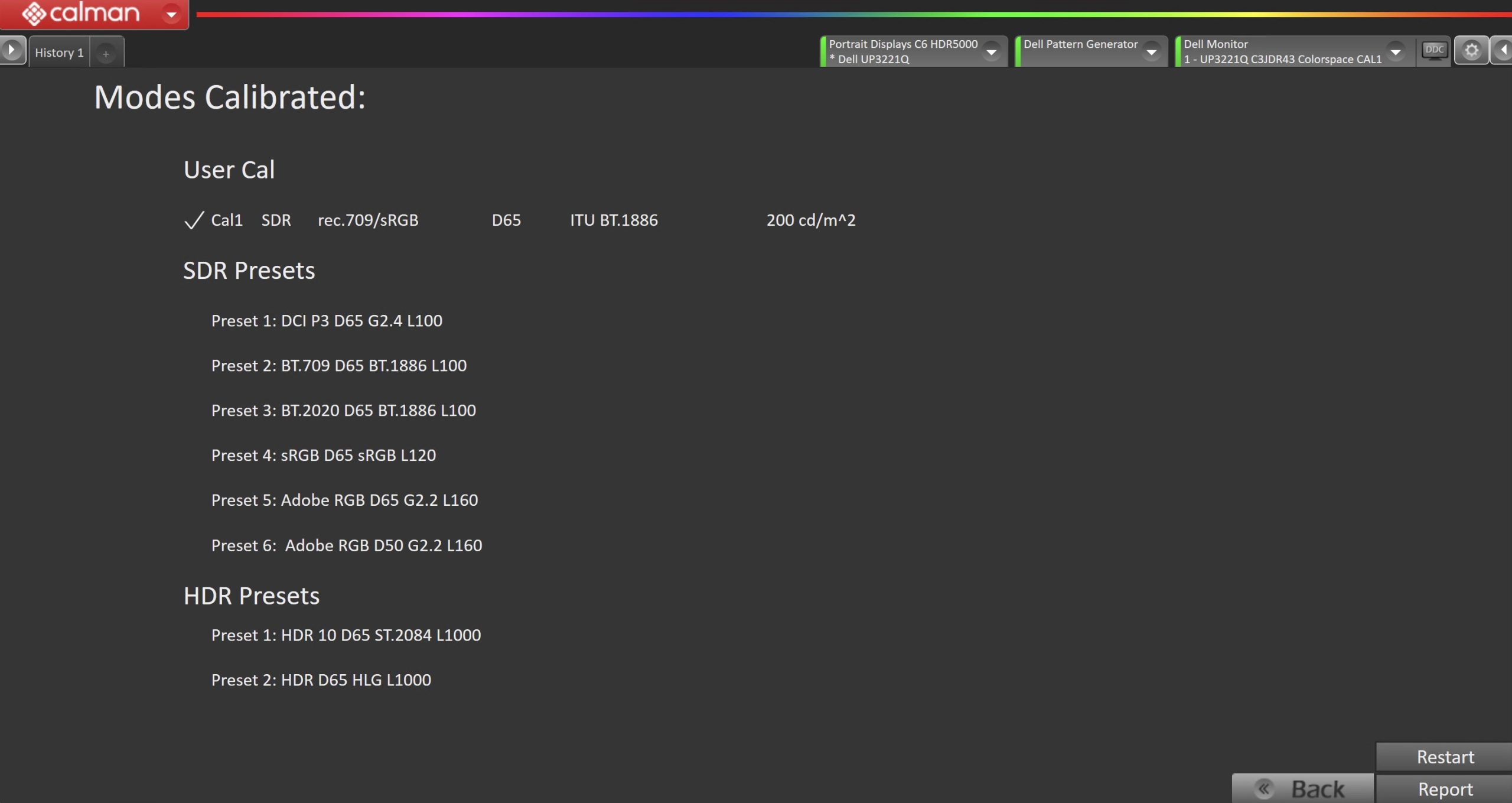
- Click Report to open the Calman for Dell calibration report, comparing the pre-calibration and post-calibration states of the calibrated presets
- Click Restart to return to the configuration page, and set up a new calibration session or calibration new modes.