Calman can guide the calibration of compatible LG OLED Pro monitors in SDR and HDR10 modes. This ensures the most accurate rendering of both SDR and HDR content by generating precise 1D and 3D LUT calibrations tailored to the EP950 and BP95E displays.


Calman Required Version
- Calman Studio or Ultimate v5.16.7 or higher
Hardware Requirements
- Calman Compatible Meter
- Calman Compatible Pattern Generator
- Calman Compatible LG Monitor:
- LG EP950
- LG BP95E
Step 1
- From the Calman Menu in the top-left, choose Open Workflow Template -> Calman Ready and then LG Monitor.
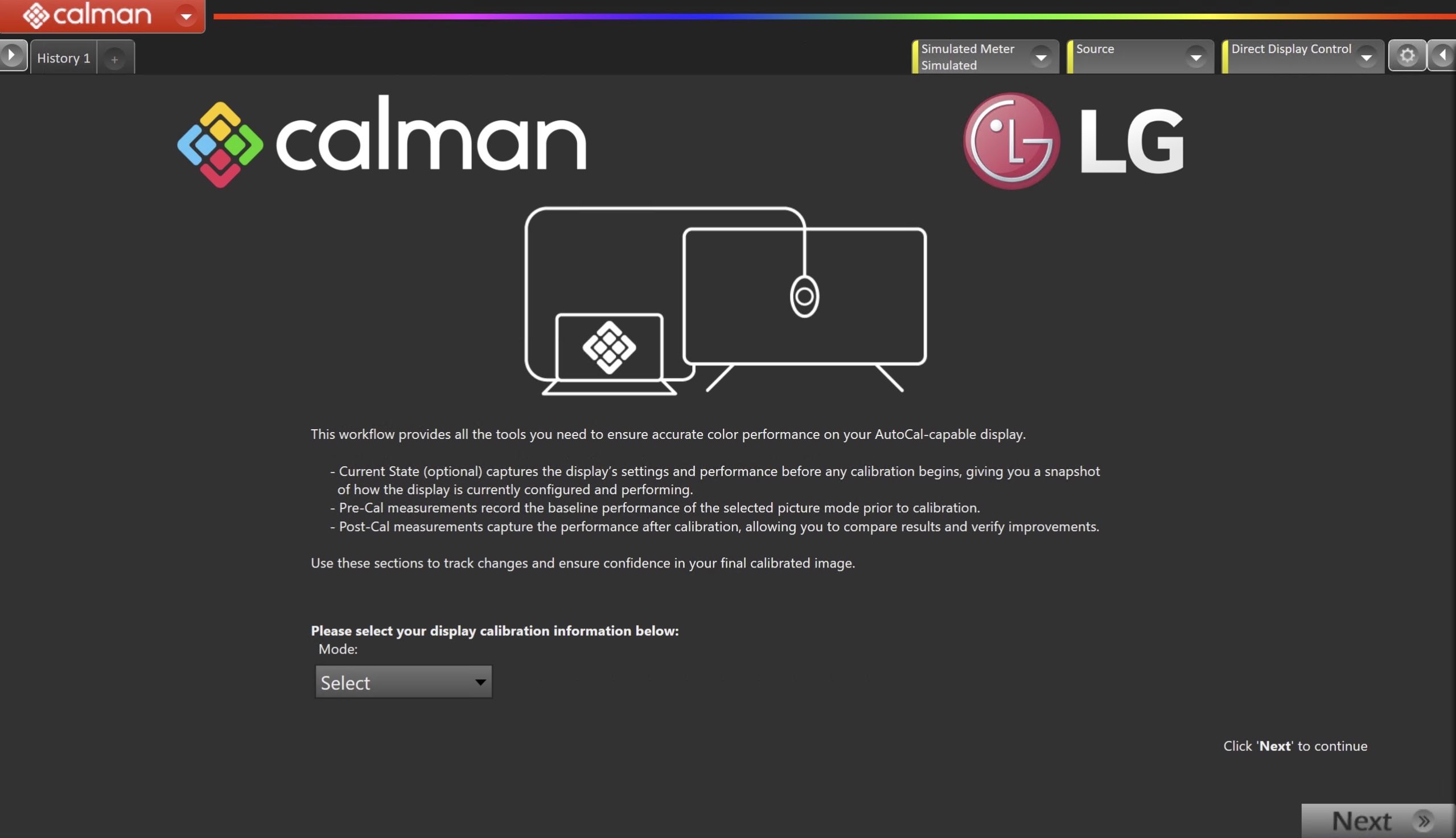
- On the introduction screen, select your calibration mode (SDR/HDR) from the dropdown and click Next to proceed to Hardware Setup
Step 2
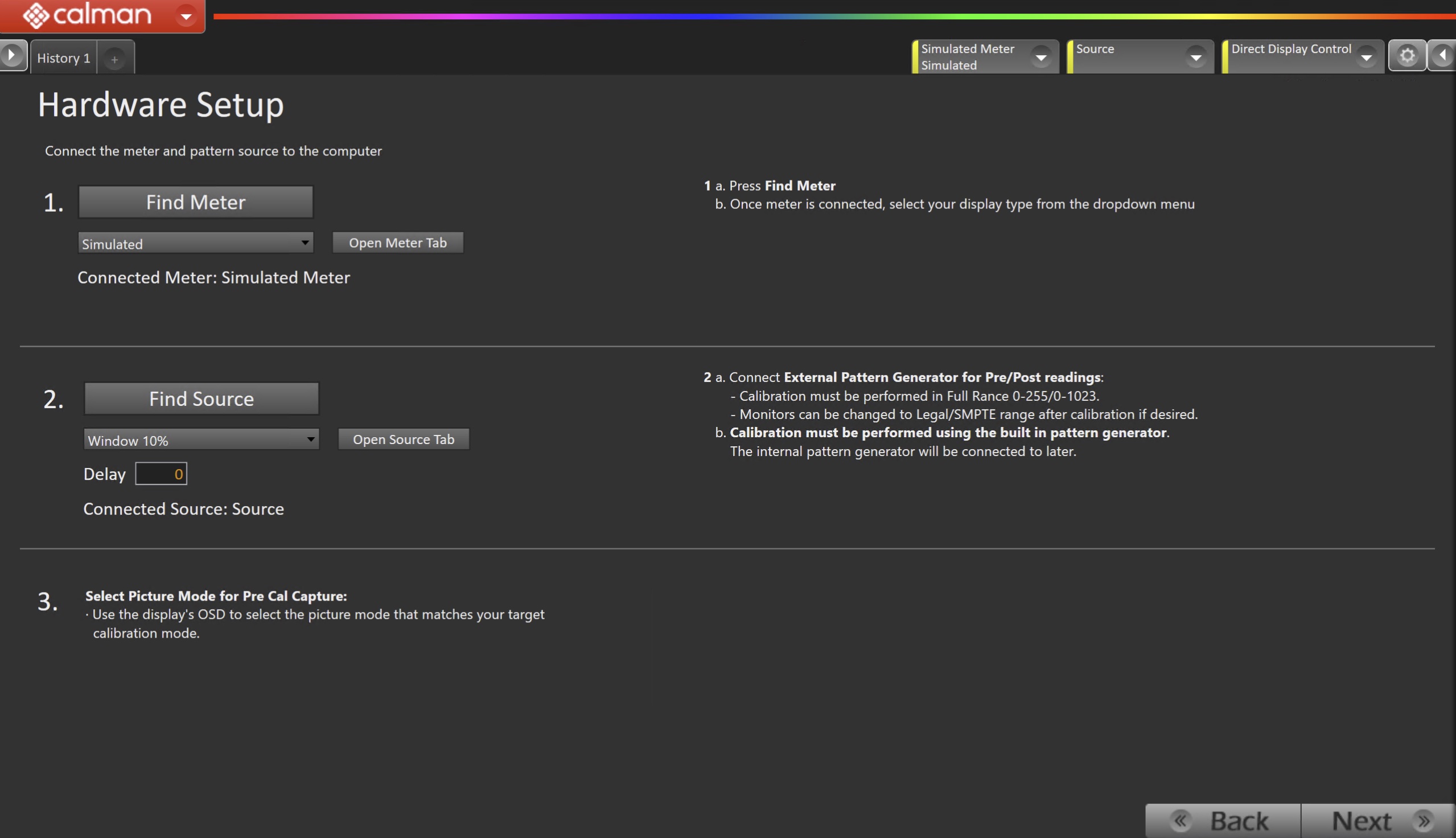
- Plug your meter into a USB port on the computer and press the Find Meter button on the left.
- When your meter is connected, select your display type from the dropdown
- Connect Pattern Source to your computer.
- Click the Find Source button, then select your source
- Connect External Pattern Generator for Pre/Post readings:
- Calibration must be performed in Full Range 0-255/0-1023.
- Monitors can be changed to Legal/SMPTE range after calibration if desired.
- Calibration must be performed using the built-in pattern generator.
- The internal pattern generator will be connected to later.
- Calibration must be performed in Full Range 0-255/0-1023.
- Connect External Pattern Generator for Pre/Post readings:
- Select the pattern window size and delay
- Recommended: Window 10%, 1 second delay
- Ensure your source is set to SDR or HDR corresponding to your choice in Step 1
- Click the Find Source button, then select your source
- Select Picture Mode for Pre-Cal Capture:
- Use the display’s OSD to select the picture mode that matches your target calibration mode.
- Click Next to proceed
Step 3
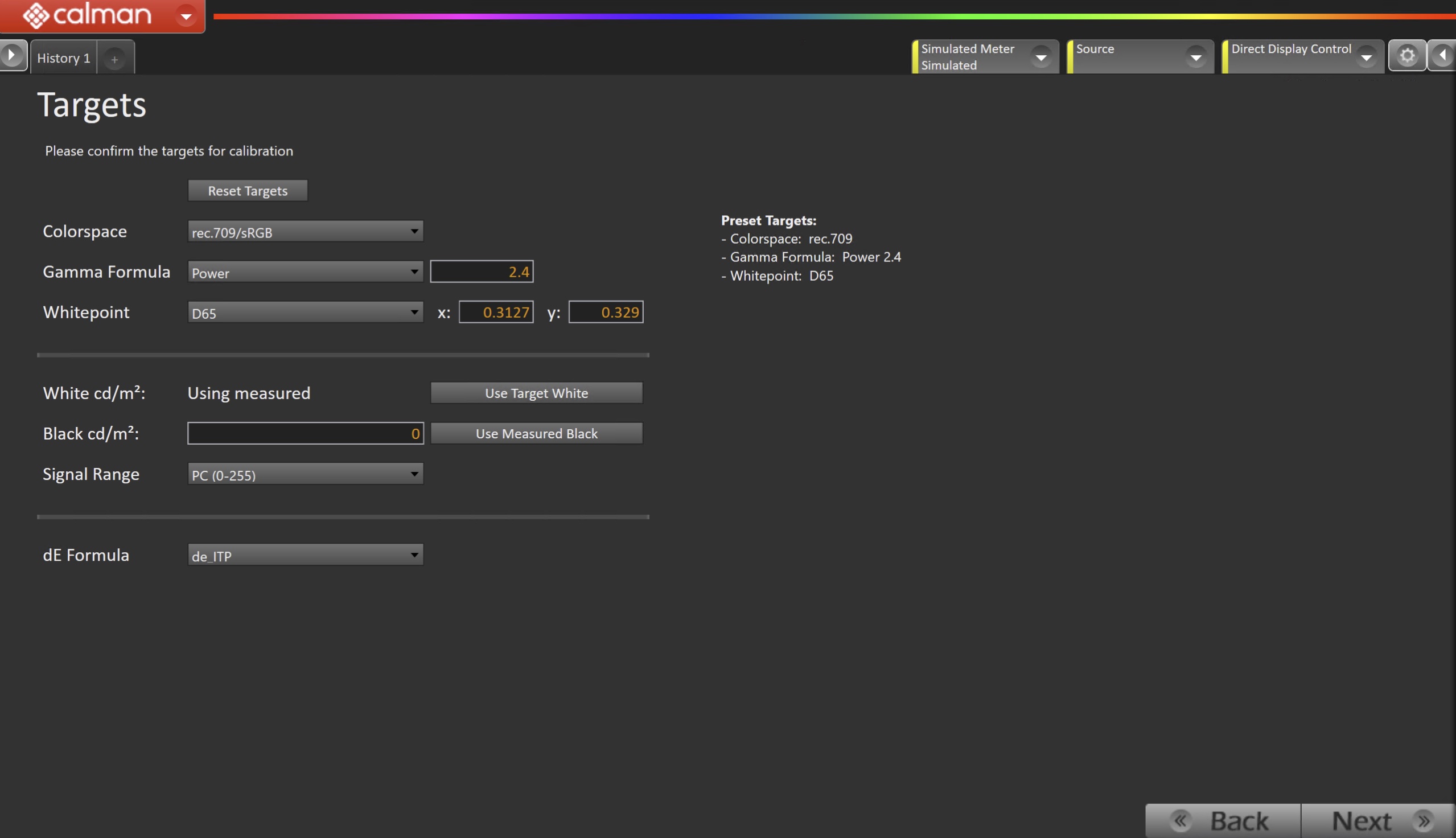
- Select the calibration targets
- Confirm/configure your calibration targets. These will be automatically set to common defaults by the options from Step 1
- Configuration Examples:
| SDR | HDR |
|
Preset Targets:
|
Preset Targets:
|
- Confirm your targets, and click Next to proceed
(Optional) Current State Measurements
- This workflow page is intended to document the monitor’s current operational state before establishing any DDC connection or selecting a calibration mode.
- This step can be skipped if documenting the current state is not needed. Another set of Pre-Calibration measurements will be taken in later steps.
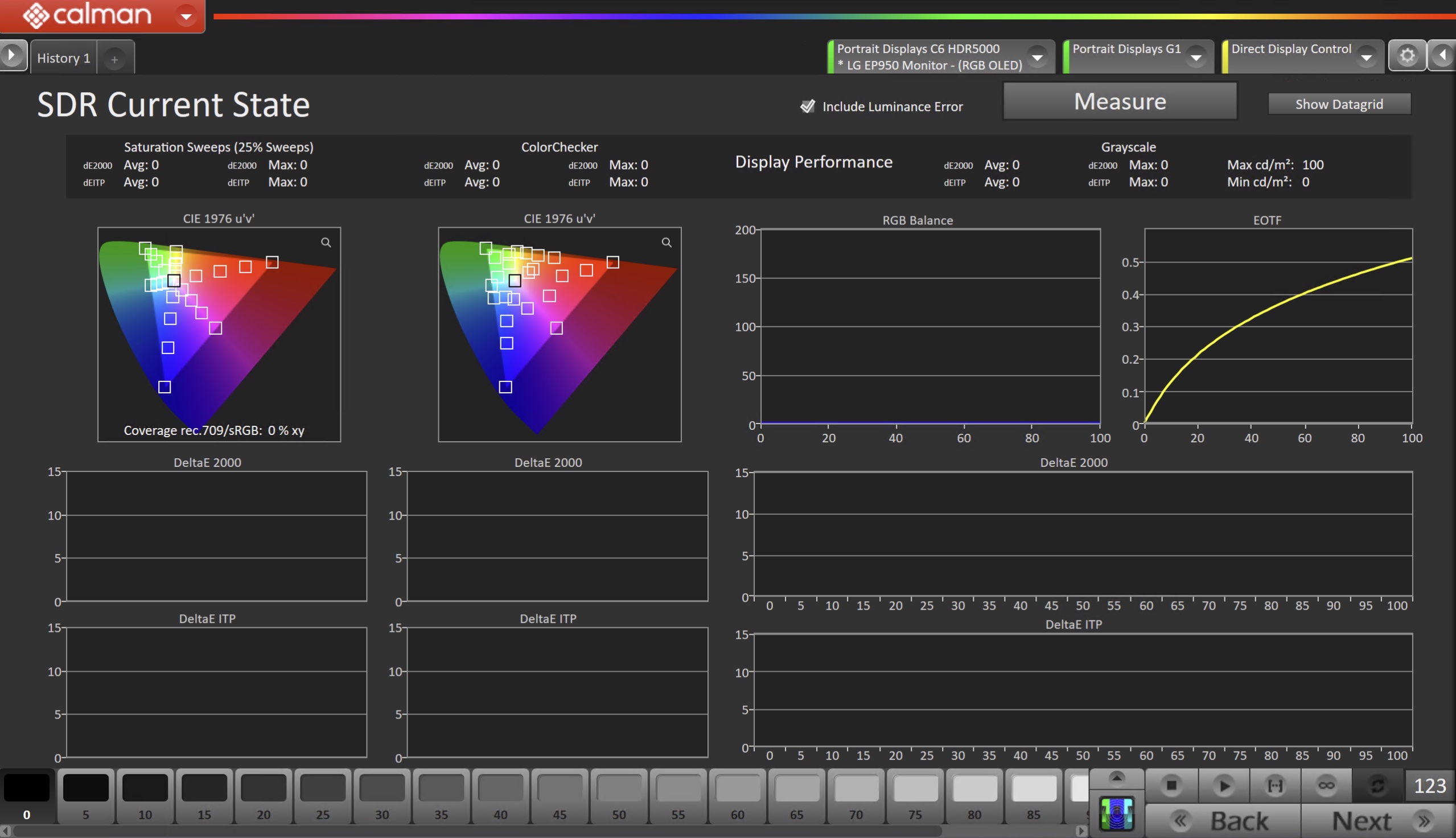
- To take Current State Measurements, click the Measure button to measure the display’s grayscale and color response.
- Click Next to proceed
Step 4
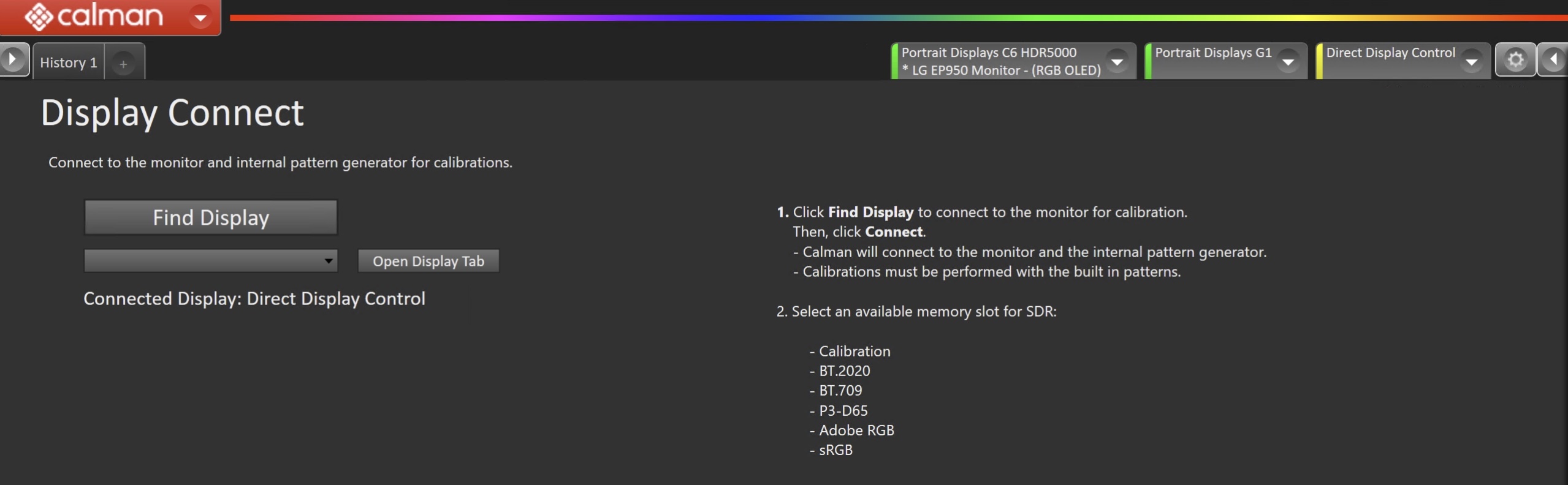
- Connect to your LG Monitor
- Connect your Calman PC to the LG monitor’s USB-B or USB-C port.
- Click the Find Display Button, verify LG Monitor – EP950 / BP95E OLED Pro is selected.
- Note: A COM port corresponding to your LG TV should be selected.
- Click Connect
- Once connected, click Next

- Now, the selected picture mode will be reset to prepare for calibration.
Pre-Calibration Measurements
- This workflow page is intended to document the target picture mode prior to calibration.
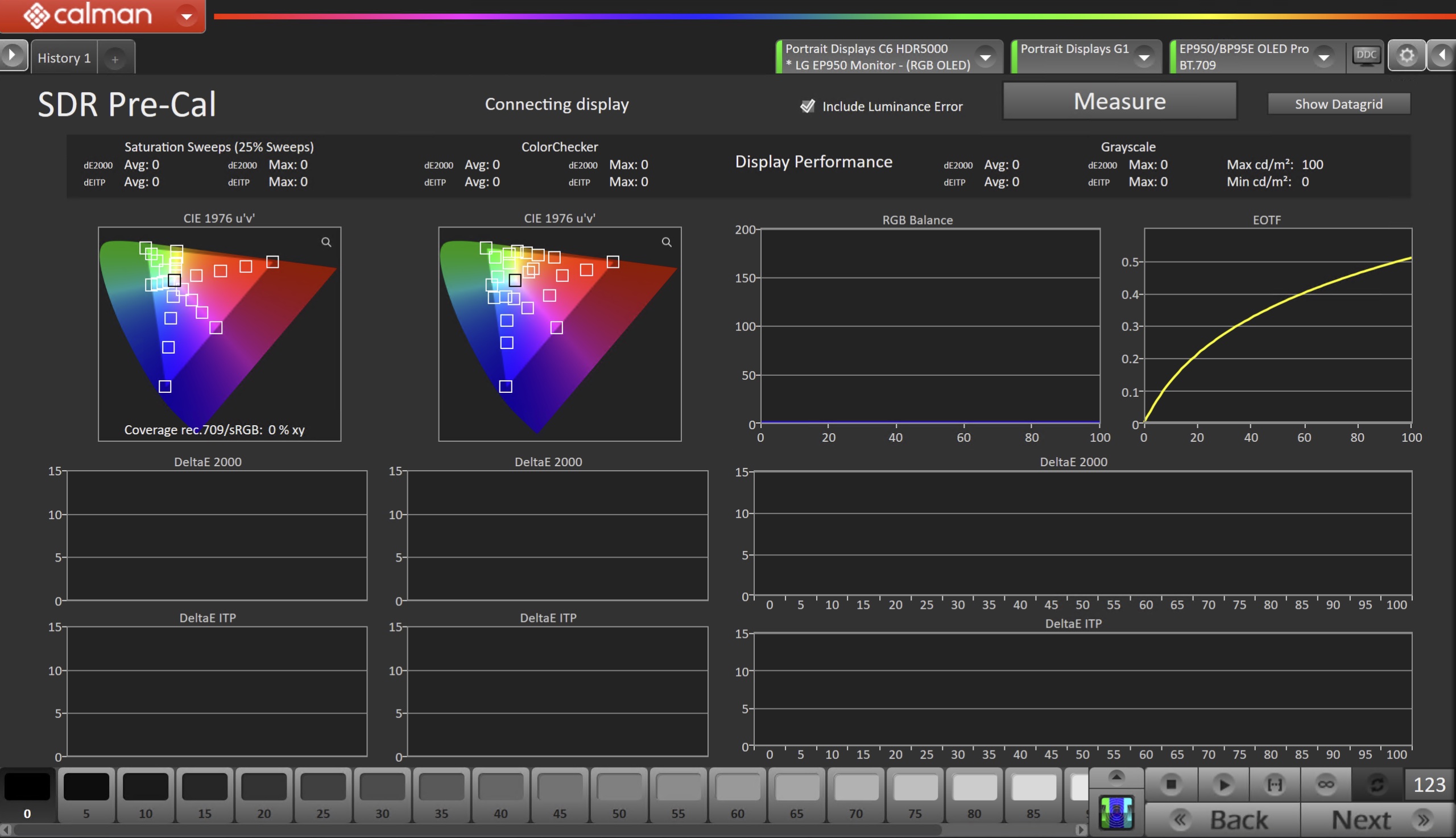
- To take Pre-Calibration Measurements, click the Measure button to measure the display’s rayscale and color response.
- This will provide a point of reference to compare the calibration results
- Click Next to proceed
Step 5
SDR Only – Measure and set Luminance
- Here, you can adjust the monitor’s Backlight setting to one that meets or exceeds your target luminance
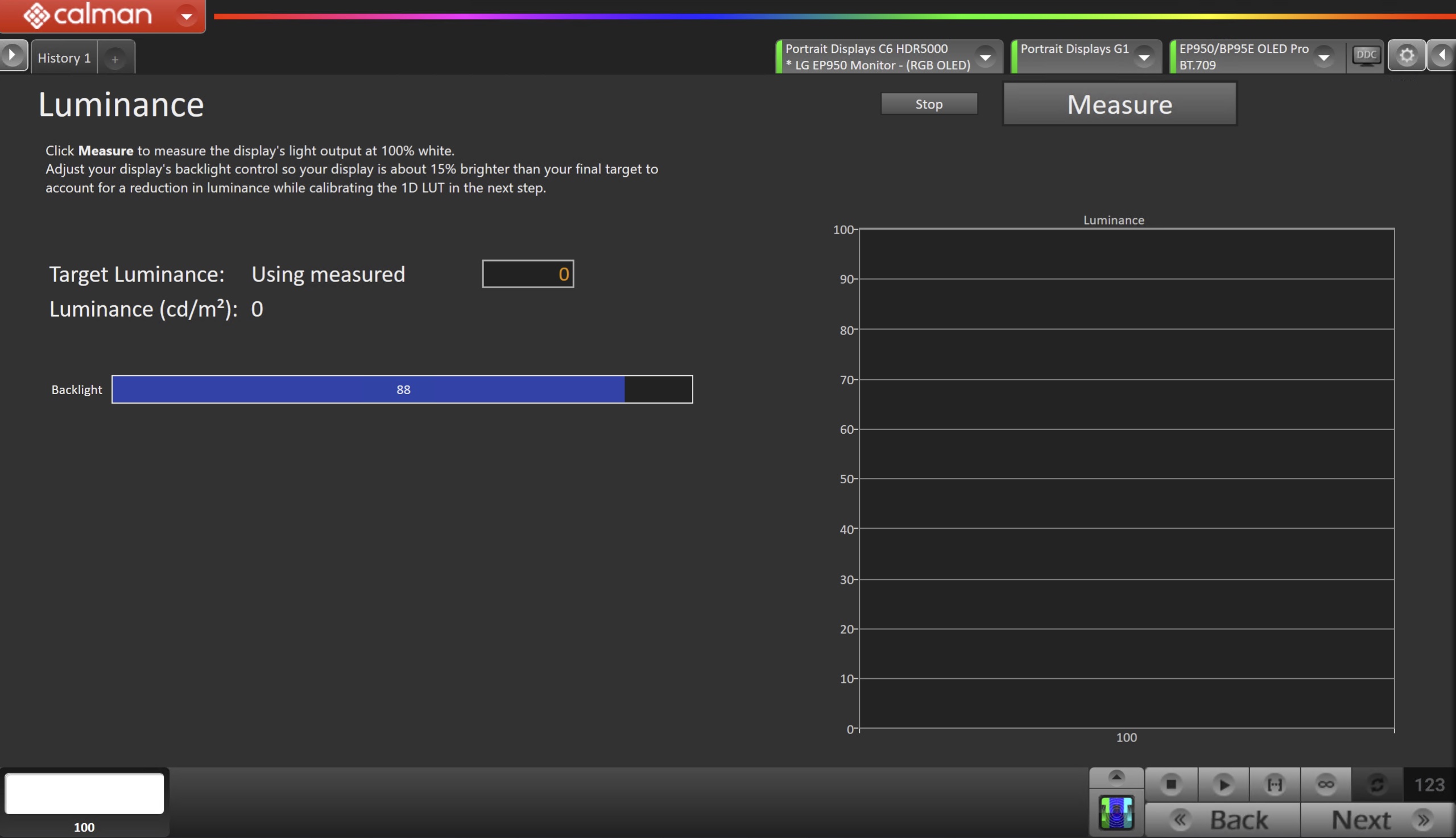
- Click Measure and adjust the Backlight slider as needed.
- Click Next to proceed
Step 6
- On this page, Calman will calibrate the Greyscale Response and Color Gamut using a 1D LUT and Matrix.
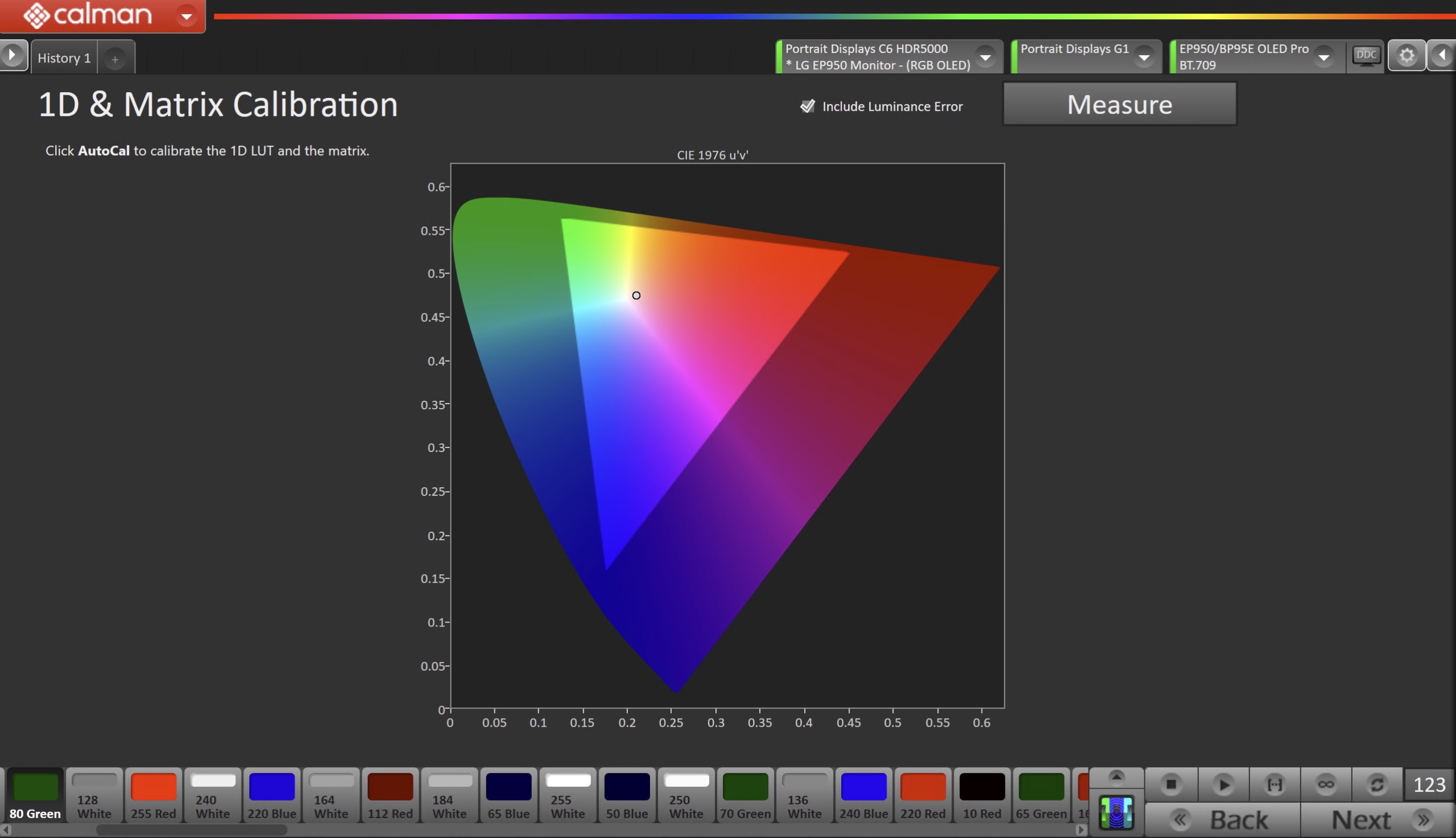
- Press the AutoCal button to begin the AutoCal process
- Click OK to begin the colorspace AutoCal process
- After clicking the AutoCal button, you will not see any status in Calman. Wait until you see a pop-up message on screen in Calman and the progress bar on the monitor go away, before proceeding to the next workflow page.
- When AutoCal is complete, press the Next button to proceed
Step 7
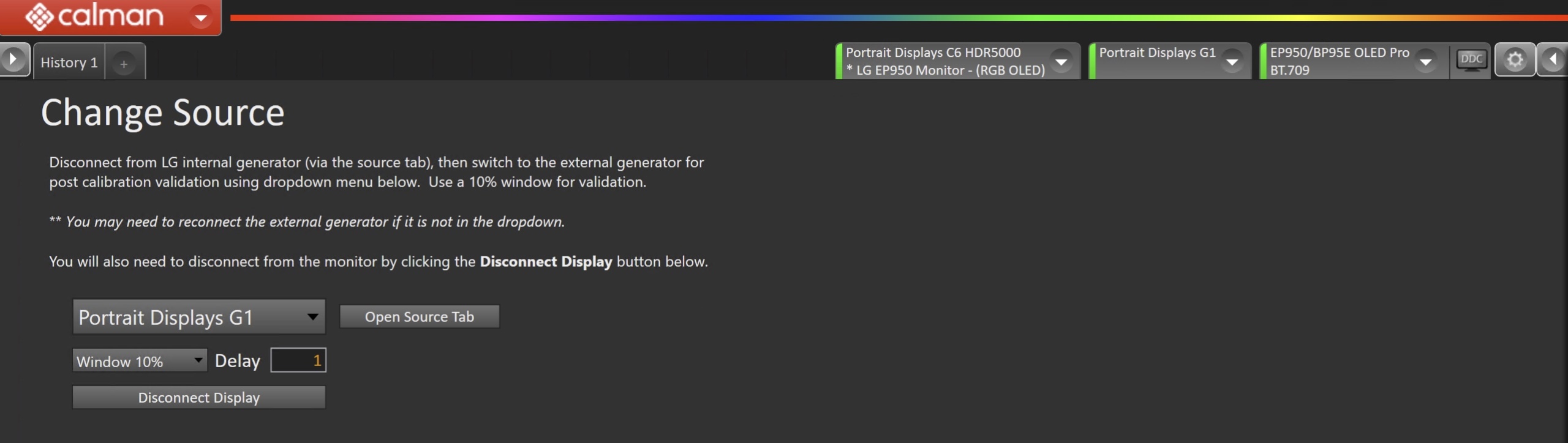
- Disconnect from the LG internal generator via the source tab, then switch to the external generator for post calibration validation using the dropdown menu.
- Use a 10% window for validation.
- You may need to reconnect the external generator if it is not in the dropdown.
- Disconnect from the monitor by clicking the Disconnect Display button.
- Click Next to proceed
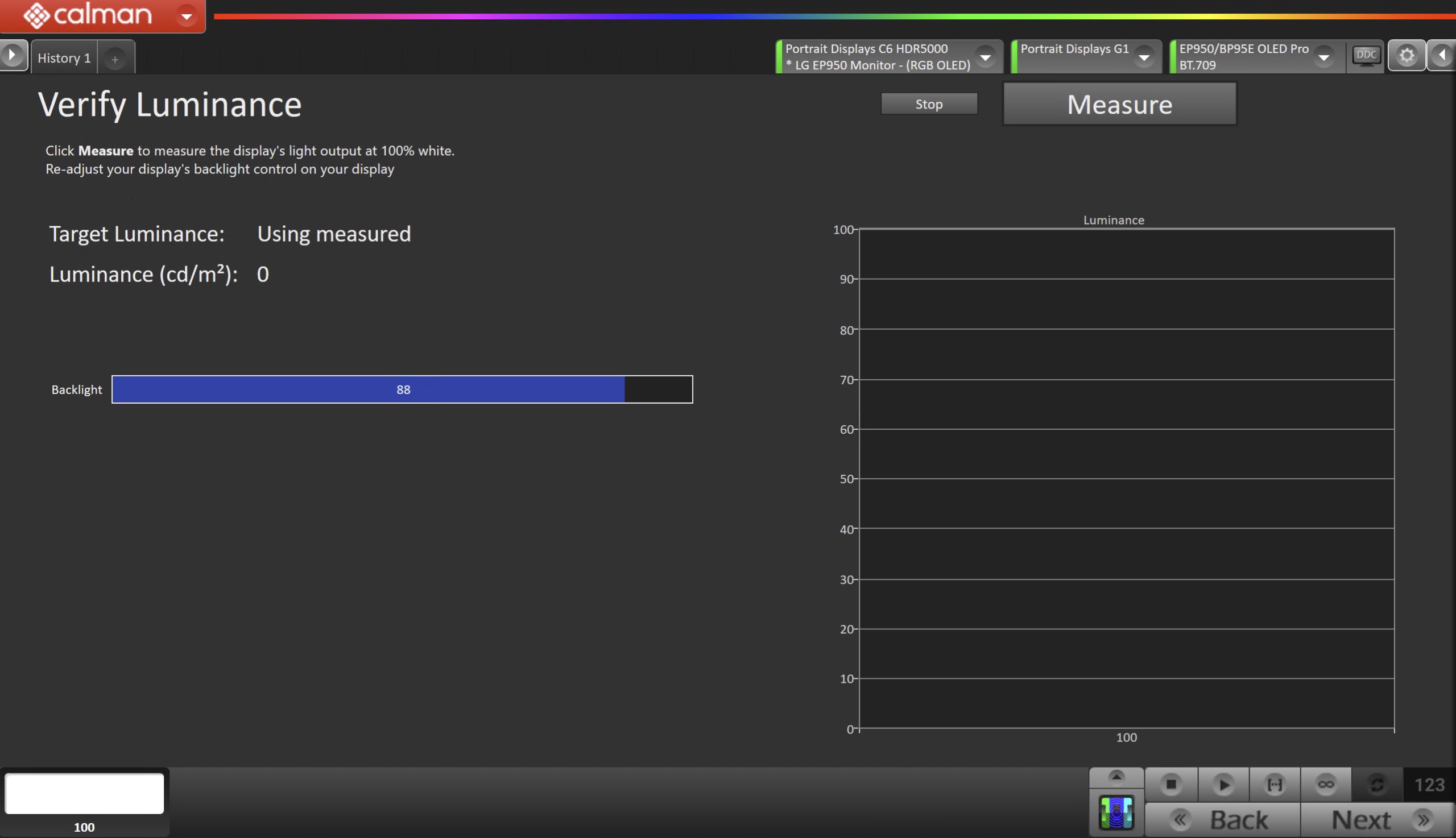
SDR Only – Measure and set Luminance
- Here, you can adjust the monitor’s Backlight setting to one that meets or exceeds your target luminance
Step 8
- In this step, you’ll take measurements of the calibration results.

- To take Post-Calibration Measurements, click the Measure button to measure the display’s grayscale and color response.
- Click Next to proceed
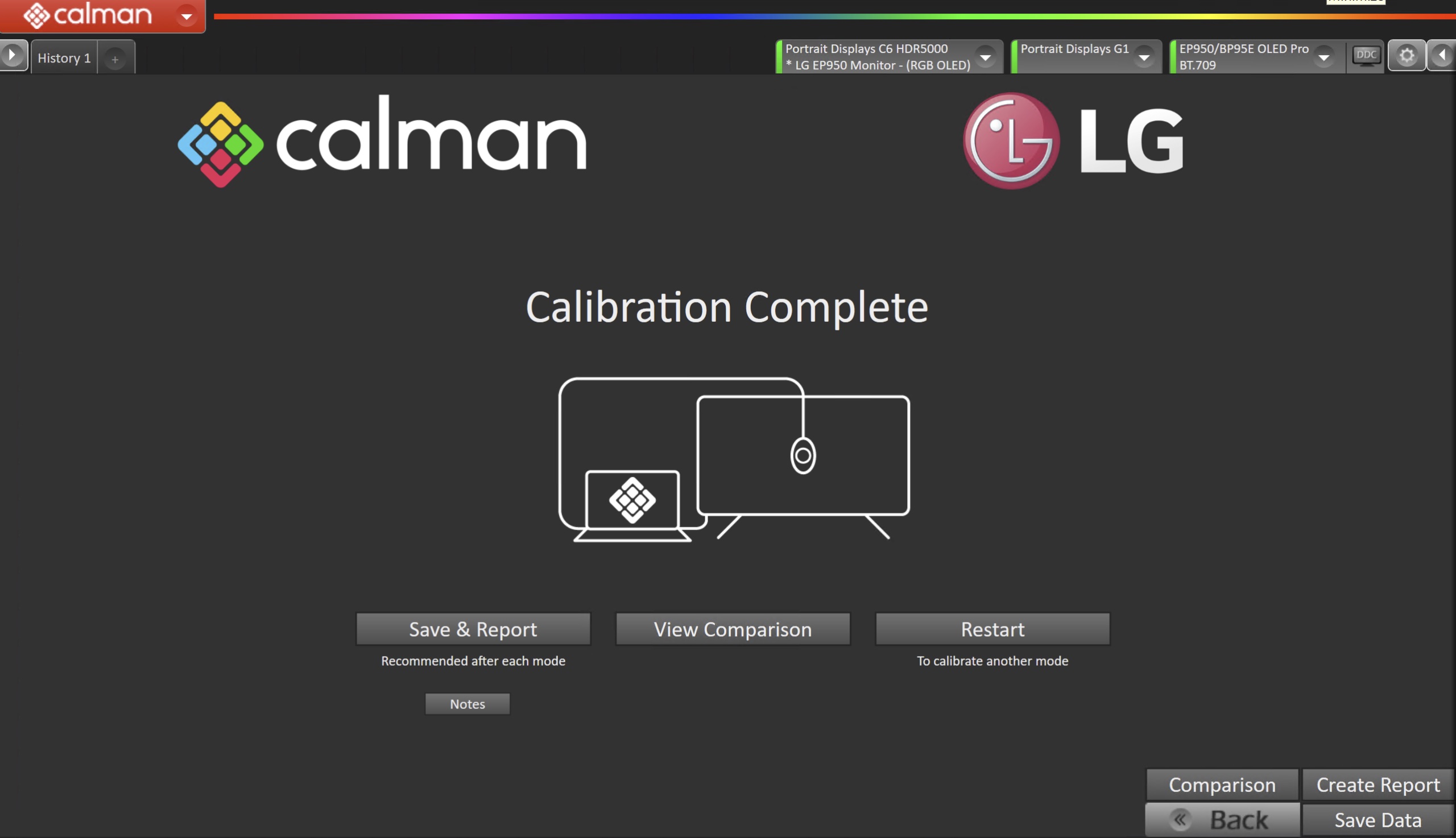
- On the Calibration Complete page, you can choose to…
- Save and Report
- Select Save and Report to generate the calibration report
- Note: Reporting not available in Calman Home
- View Comparison
- Displays Pre and Post Calibration measurements of the calibrated mode side-by-side
- Restart
- Returns to the beginning of the workflow where a new mode or colorspace can be selected
- Note: Does not save workflow data
- Save and Report