

The EIZO Monitor Calibration workflow in Calman provides automated calibration for supported EIZO models. Depending on the monitor’s capabilities, Calman can load a full 3D LUT directly into the display or apply a 1D LUT paired with a color correction matrix. This workflow guides you through configuring your targets and performing accurate calibrations using the monitor’s internal processing.
Calman Required Version
- Calman Studio or Ultimate v5.17.1 or higher
Hardware Requirements
Calman Supported EIZO models:
| Product | Matrix | 1D LUT | 3D LUT |
| CG210 | ✔ | ✔ | |
| CG211 | ✔ | ✔ | |
| CG220 | ✔ | ✔ | |
| CG221 | ✔ | ✔ | |
| CG222W | ✔ | ✔ | |
| CG223W | ✔ | ✔ | |
| CG232W | ✔ | ✔ | |
| CG241W | ✔ | ✔ | |
| CG242W | ✔ | ✔ | |
| CG243W | ✔ | ✔ | |
| CG245W | ✔ | ✔ | |
| CG246 | ✔ | ✔ | |
| CG247 | ✔ | ✔ | |
| CG247X | ✔ | ✔ | |
| CG248 | ✔ | ✔ | ✔ |
| CG275W | ✔ | ✔ | |
| CG276 | ✔ | ✔ | |
| CG277 | ✔ | ✔ | |
| CG279X | ✔ | ✔ | ✔ |
| CG301W | ✔ | ✔ | |
| CG303W | ✔ | ✔ | |
| CG318 | ✔ | ✔ | ✔ |
| CG319X | ✔ | ✔ | ✔ |
| CG2420 | ✔ | ✔ | |
| CG2730 | ✔ | ✔ | |
| CG2700S | ✔ | ✔ | ✔ |
| CG2700X | ✔ | ✔ | ✔ |
| CS230 | ✔ | ✔ | |
| CS240 | ✔ | ✔ | |
| CS270 | ✔ | ✔ | |
| CS2400R | ✔ | ✔ | |
| CS2400S | ✔ | ✔ | |
| CS2410 | ✔ | ✔ | |
| CS2420 | ✔ | ✔ | |
| CS2730 | ✔ | ✔ | |
| CS2731 | ✔ | ✔ | |
| CS2740 | ✔ | ✔ | |
| CS2740-X | ✔ | ✔ | |
| CX240 | ✔ | ✔ | |
| CX241 | ✔ | ✔ | |
| CX270 | ✔ | ✔ | |
| CX271 | ✔ | ✔ |
Step 1
- From the Calman Menu in the top-left, choose Open Workflow Template -> Calman Ready and then WORKFLOW NAME.
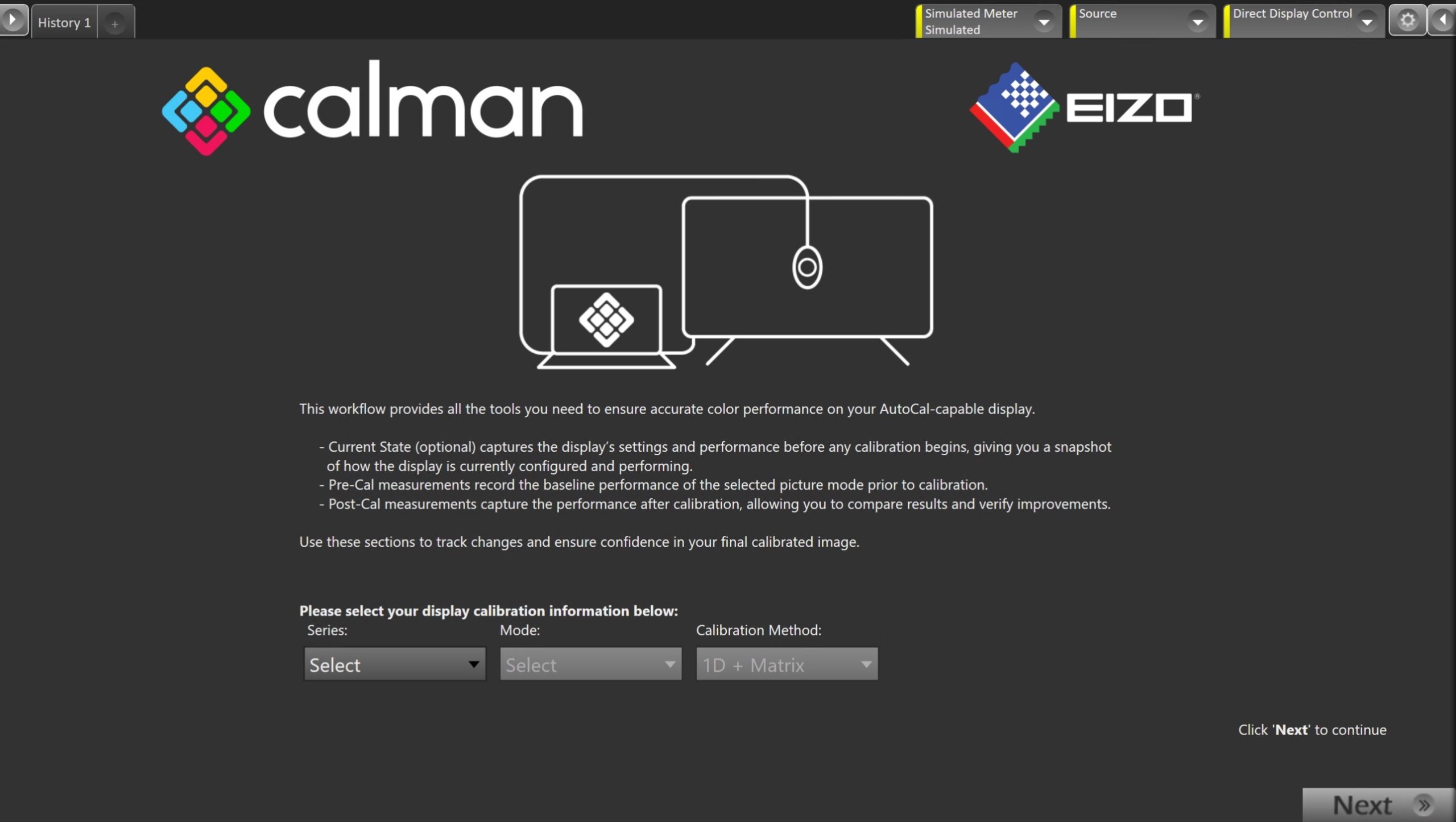
- On the introduction screen, select your display series (CG/CS/CX)
- For CX Series, select calibration mode (SDR/HDR) and method (1D+Matrix/1D+3DLUT) from the dropdowns.
- For CG and CS series, only SDR and 1D+Matrix are supported
- Click Next to proceed to Hardware Setup
Step 2
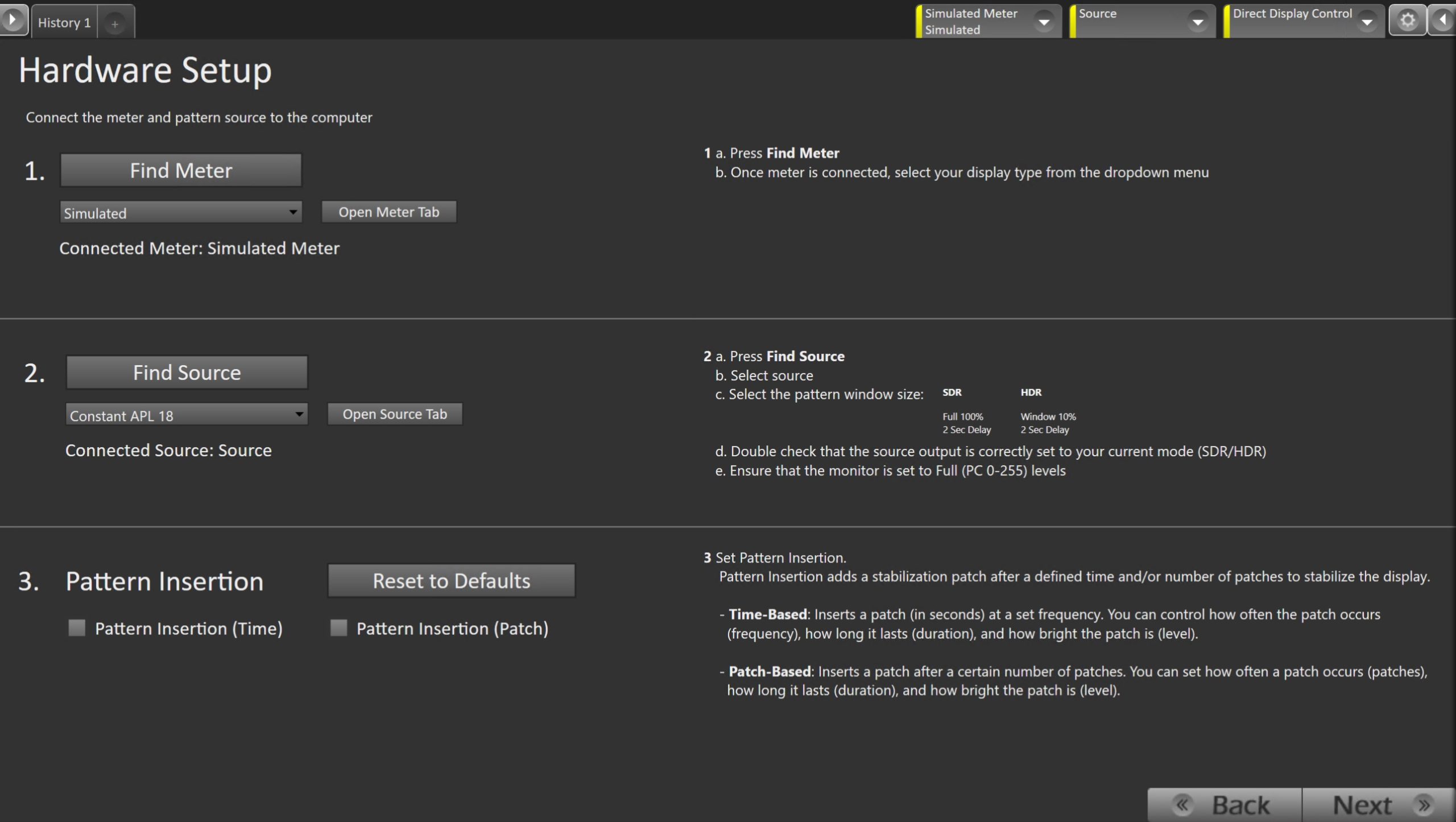
- Plug your meter into a USB port on the computer and press the Find Meter button on the left.
- When your meter is connected, select your display type from the dropdown
- Connect Pattern Source to your computer.
- Click the Find Source button, then select your source
- Select the pattern window size and delay
- SDR
- Full 100%
- 2-sec delay
- HDR
- Window 10%
- 2-sec delay
- SDR
- Ensure your source is set to Full-Range and SDR or HDR corresponding to your choice in Step 1
- Set Pattern insertion
- Click the Reset to Defaults button to set the appropriate pattern insertion for the display and calibration type in Step 1
- LCD models do not require Pattern Insertion to be enabled.
- Click the Reset to Defaults button to set the appropriate pattern insertion for the display and calibration type in Step 1
- Click Next to proceed
Step 3
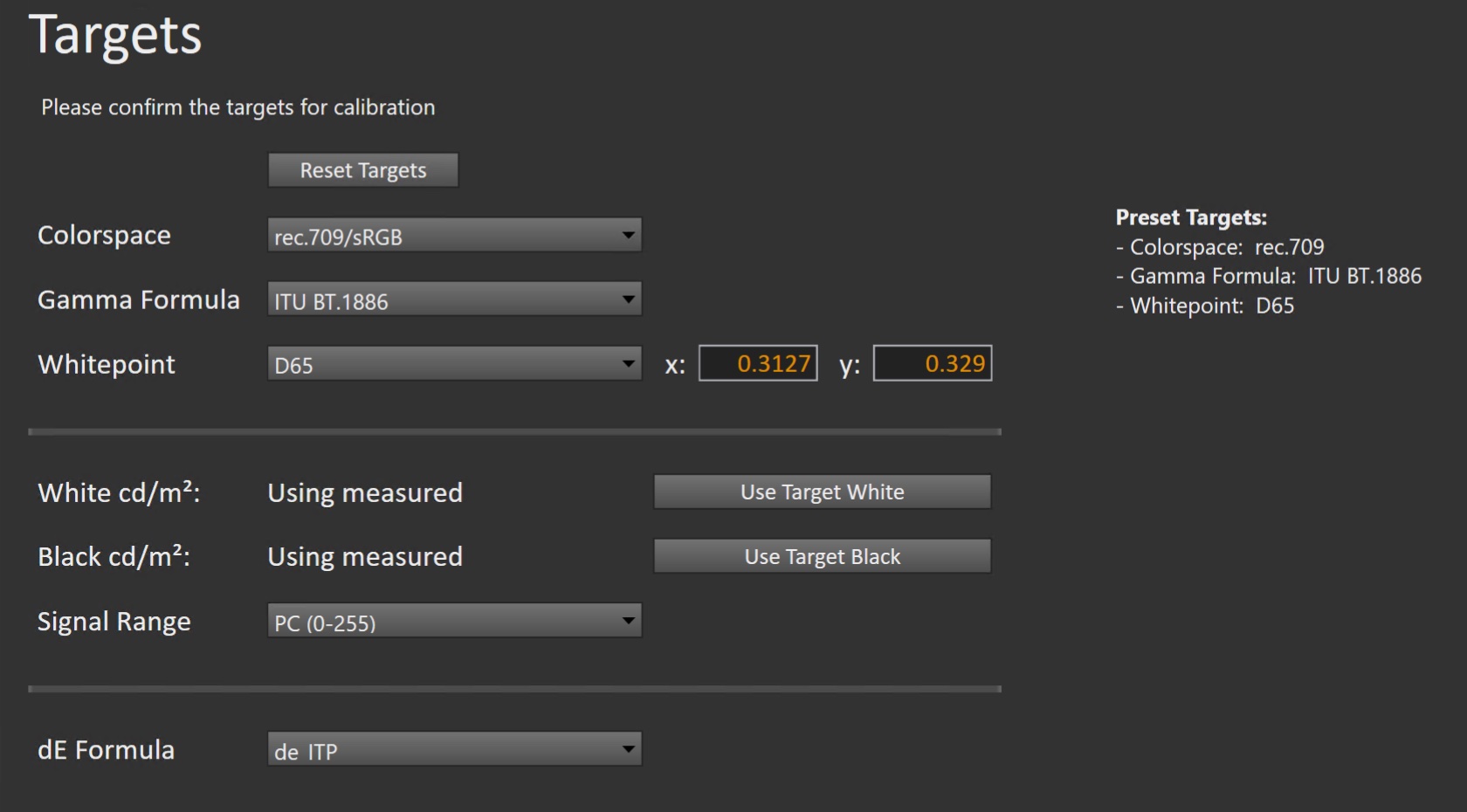
- Select the calibration targets
- Confirm/configure your calibration targets. These will be automatically set to common defaults by the options from Step 1
- Configuration Examples:
| SDR | HDR |
 |
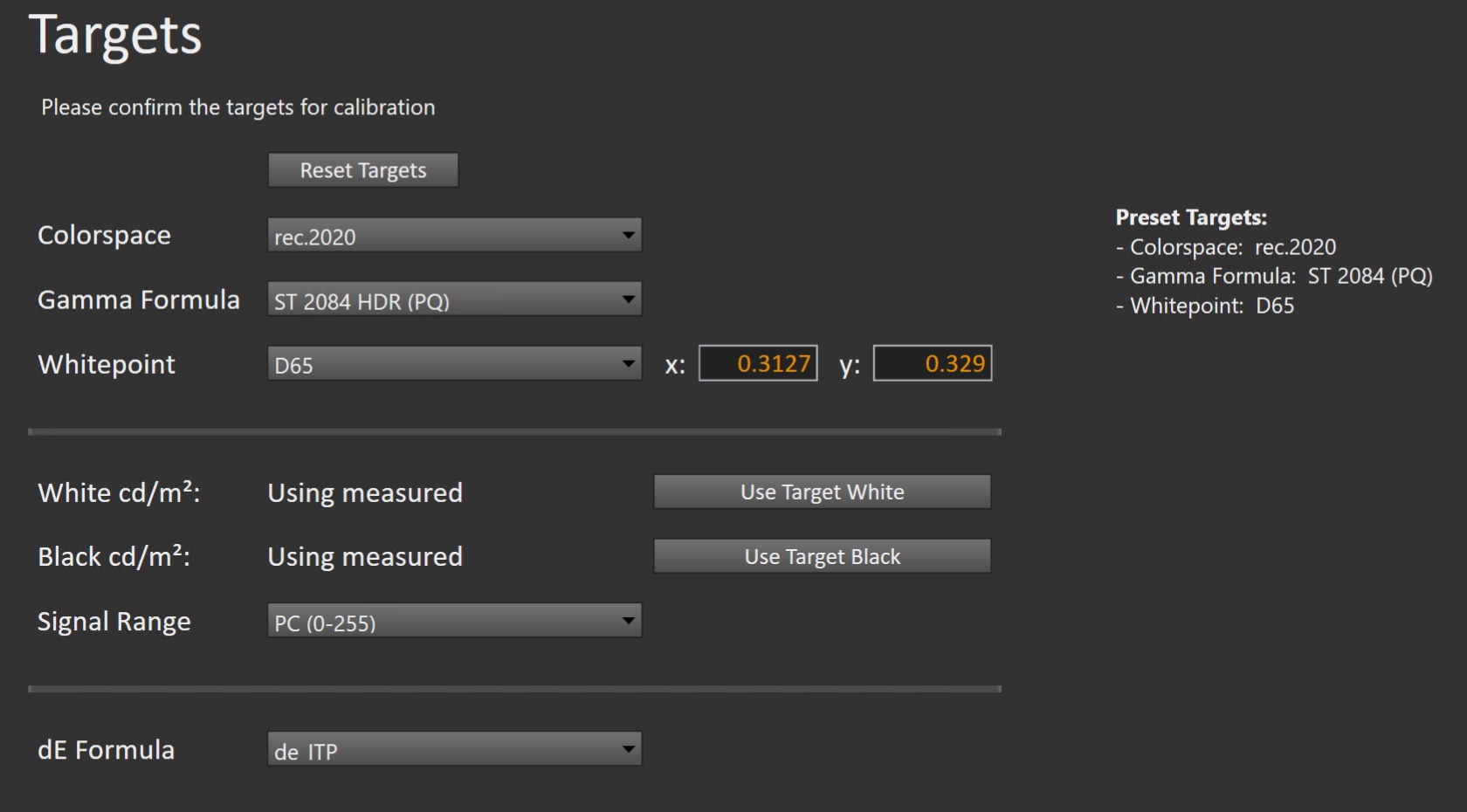 |
- Confirm your targets, and click Next to proceed
(Optional) Current State Measurements
- This workflow page is intended to document the monitor’s current operational state before establishing any DDC connection or selecting a calibration mode.
- This step can be skipped if documenting the current state is not needed. Another set of Pre-Calibration measurements will be taken in later steps.
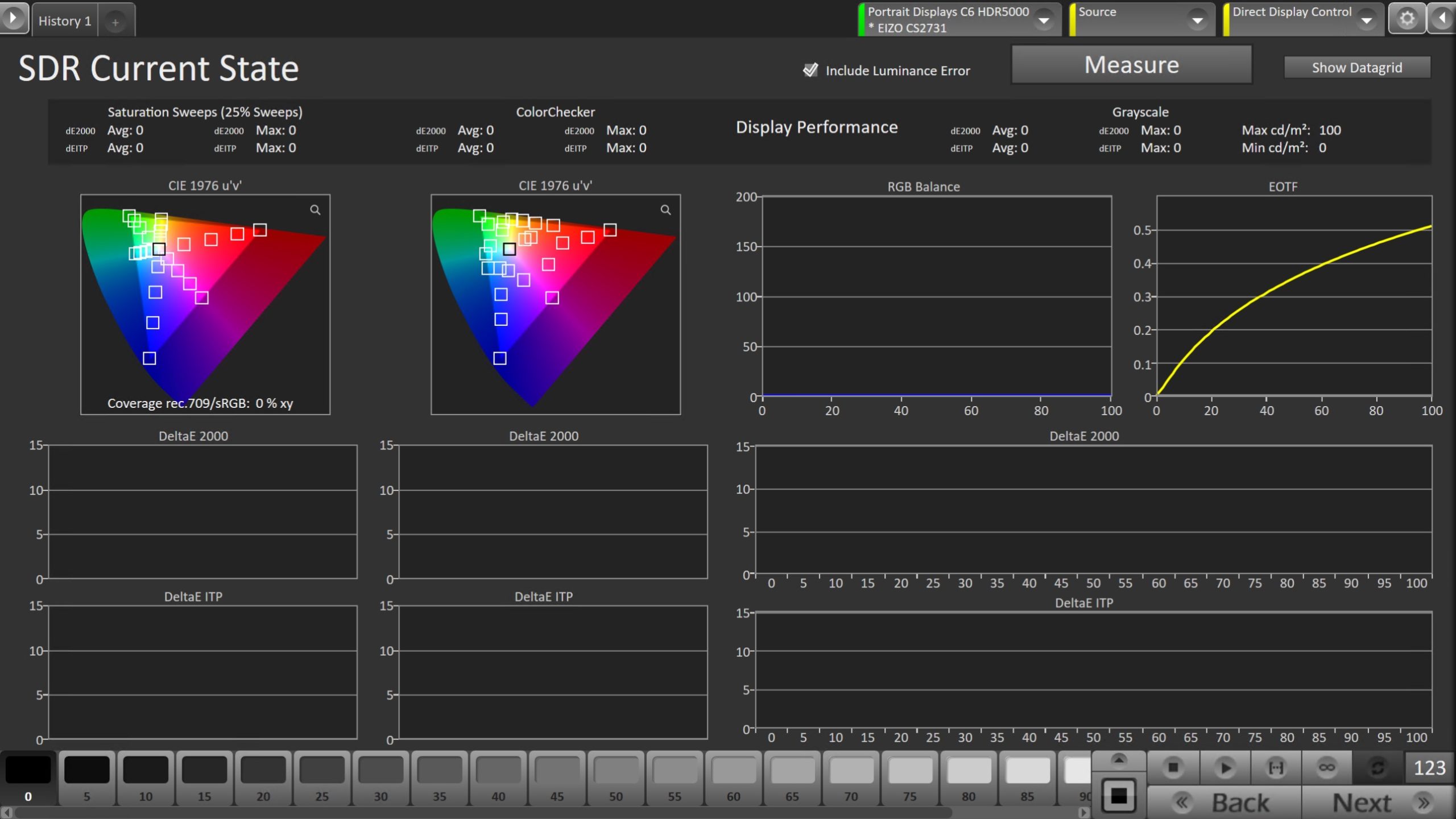
- To take Current State Measurements, click the Measure button to measure the display’s grayscale and color response.
- Click Next to proceed
Step 4

- Connect your Display
- Connect your monitor to your PC using USB.
- Click the Find Display Button
- Select Eizo
- Select either “ColorEdge Monitors 1D LUT” for 1D+Matrix calibrations or “ColorEdge Monitors 3D LUT” to calibrate CX series monitors in SDR with a 3D LUT
- Click Connect
Pre-Calibration Measurements
- This workflow page is intended to document the target picture mode prior to calibration.
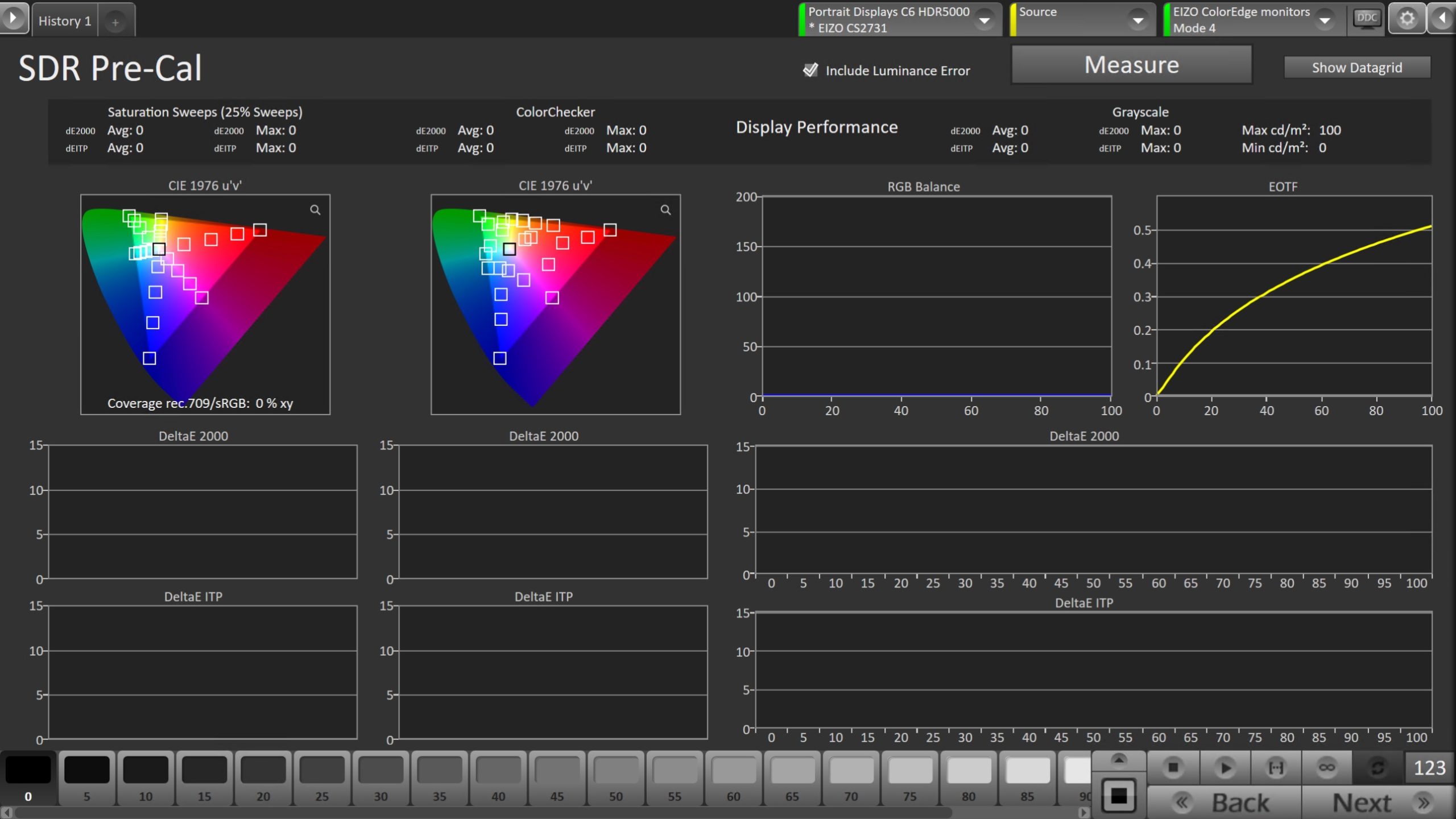
- To take Pre-Calibration Measurements, click the Measure button to measure the display’s rayscale and color response.
- This will provide a point of reference to compare the calibration results
- Click Next to proceed
Step 5
- Here, the Calman picture mode will be reset to prepare for calibration.

- Select the mode you wish to calibrate
- Note: Available modes will vary by model
- Click the Reset button. This resets and prepares the picture mode for calibration.
- Click Next to proceed
SDR Only – Measure and set Luminance
- Here, you can adjust the displays Backlight setting to one that meets or exceeds your target luminance
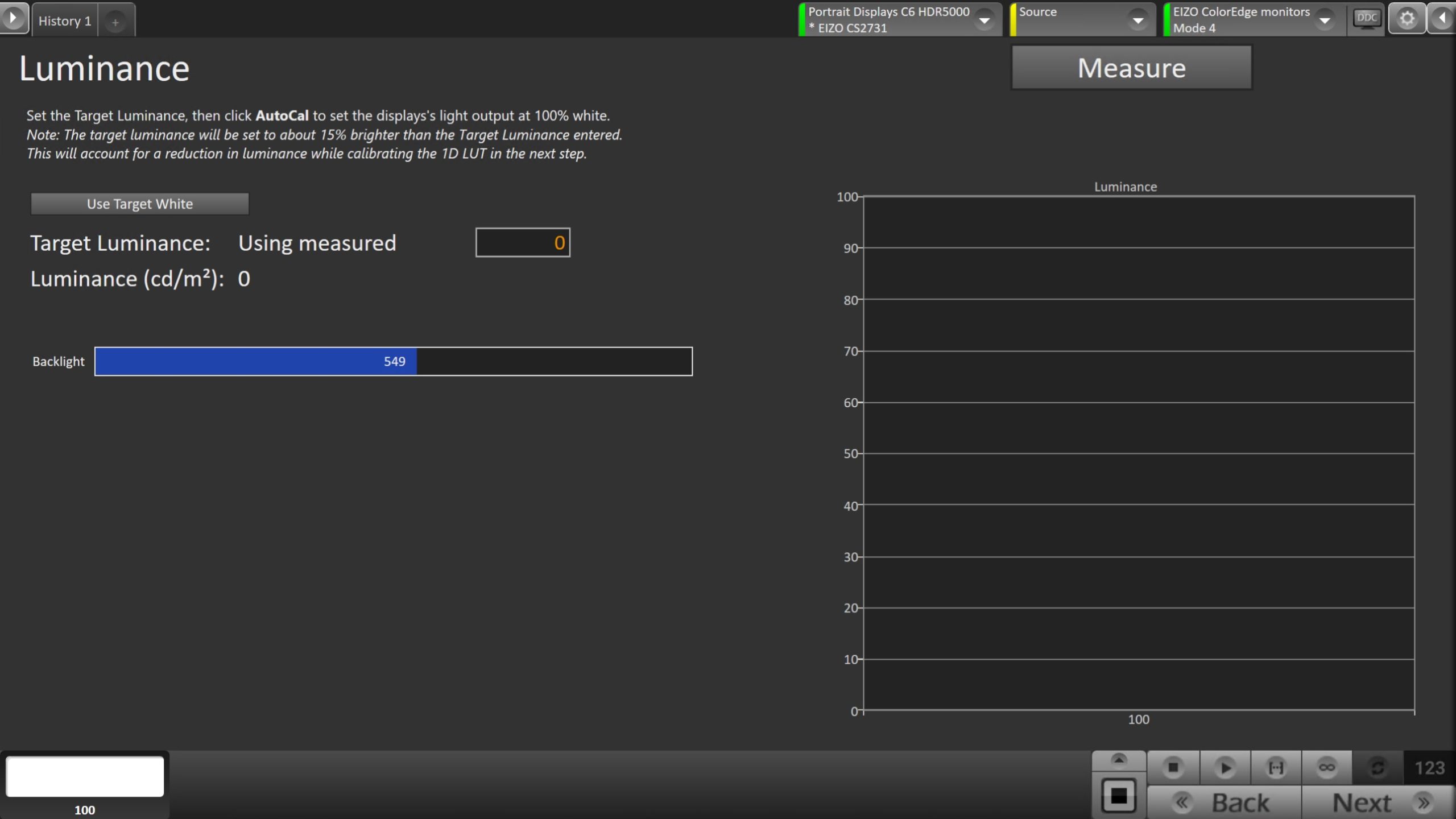
- Click Measure and adjust the Backlight slider as needed.
- Click Next to proceed
Step 6
- Here, Calman will adjust the color gamut using a 3×3 matrix
- Note: This step will not be present for CX Series 3D LUT calibrations
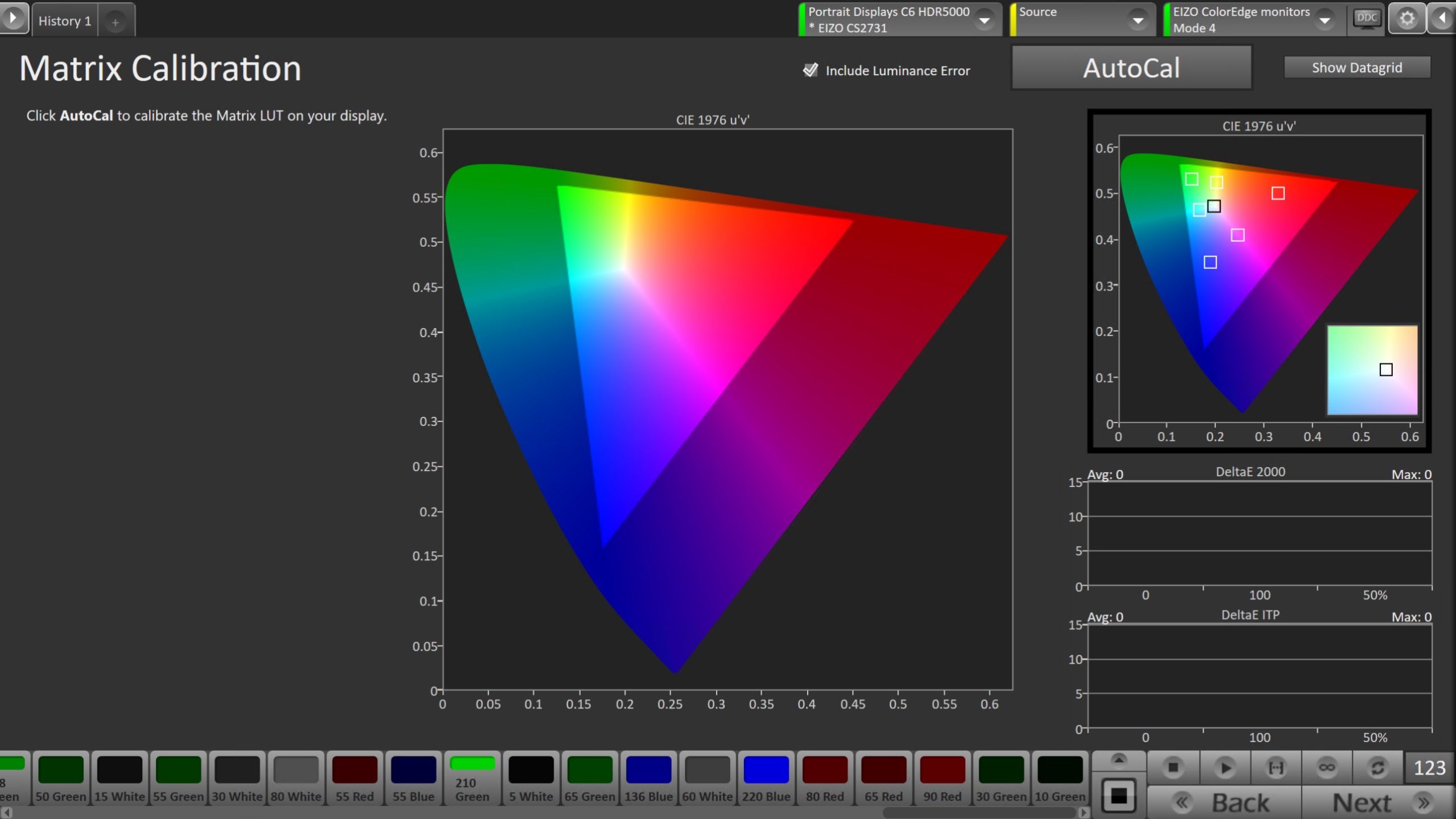
- Press the AutoCal button to open the AutoCal dialog
- Ensure the Stimulus Level dropdown is set to 100, and click OK to begin the colorspace AutoCal process
- When AutoCal is complete, press the Next button to proceed
Step 7
- Here, Calman will adjust the Multipoint Grayscale.
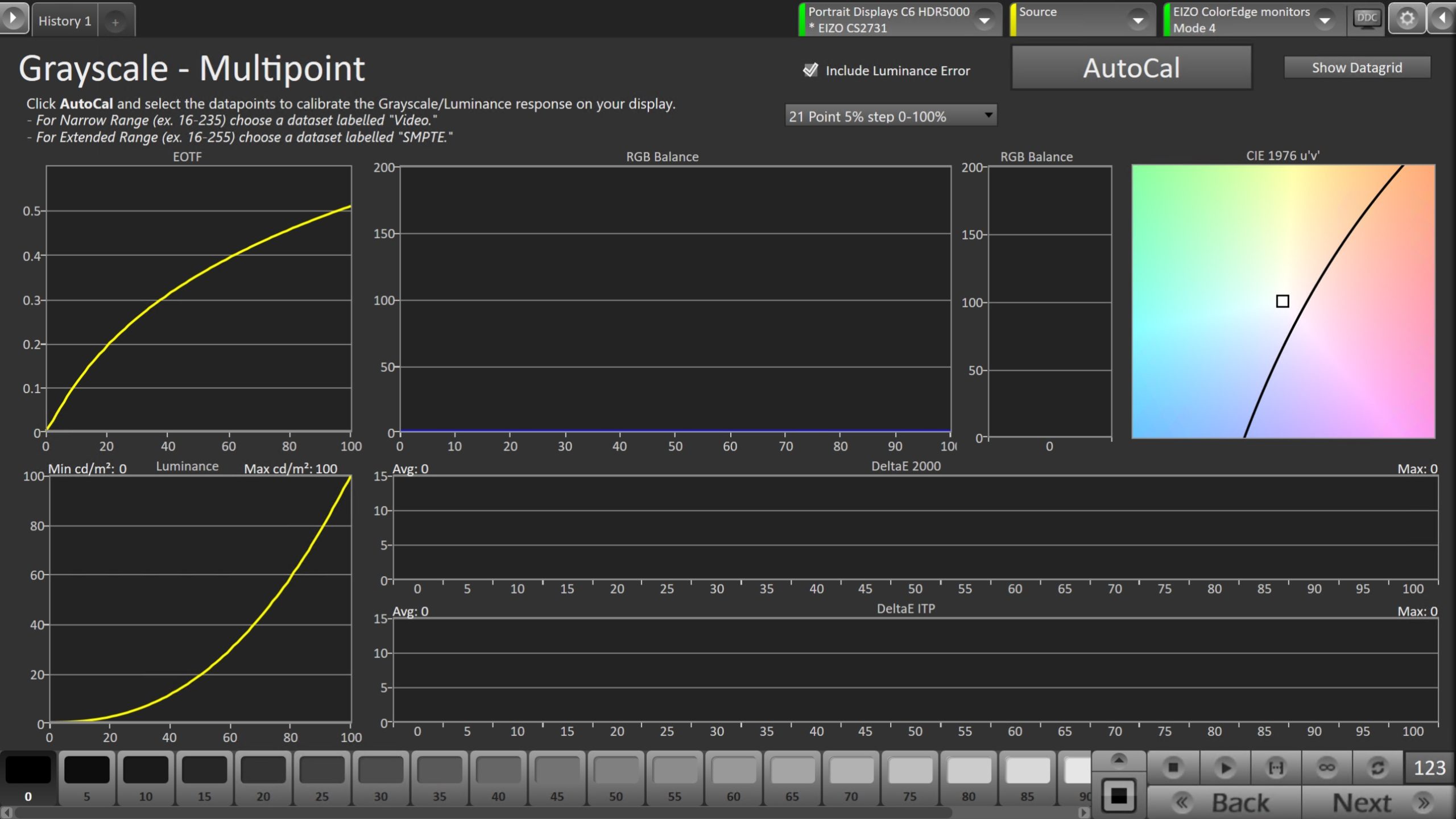
- Click the AutoCal button and select the correct data points in the AutoCal Dialog to auto-calibrate the Grayscale/Luminance response on the display.
- This should match the video range you chose in Step 1.
- Click OK to begin greyscale AutoCal.
- When AutoCal is complete, click the Next button to proceed.
Step 8 – CX Series 3D LUT calibration only
- On this page, Calman will calibrate the Color Gamut using a 3D LUT.
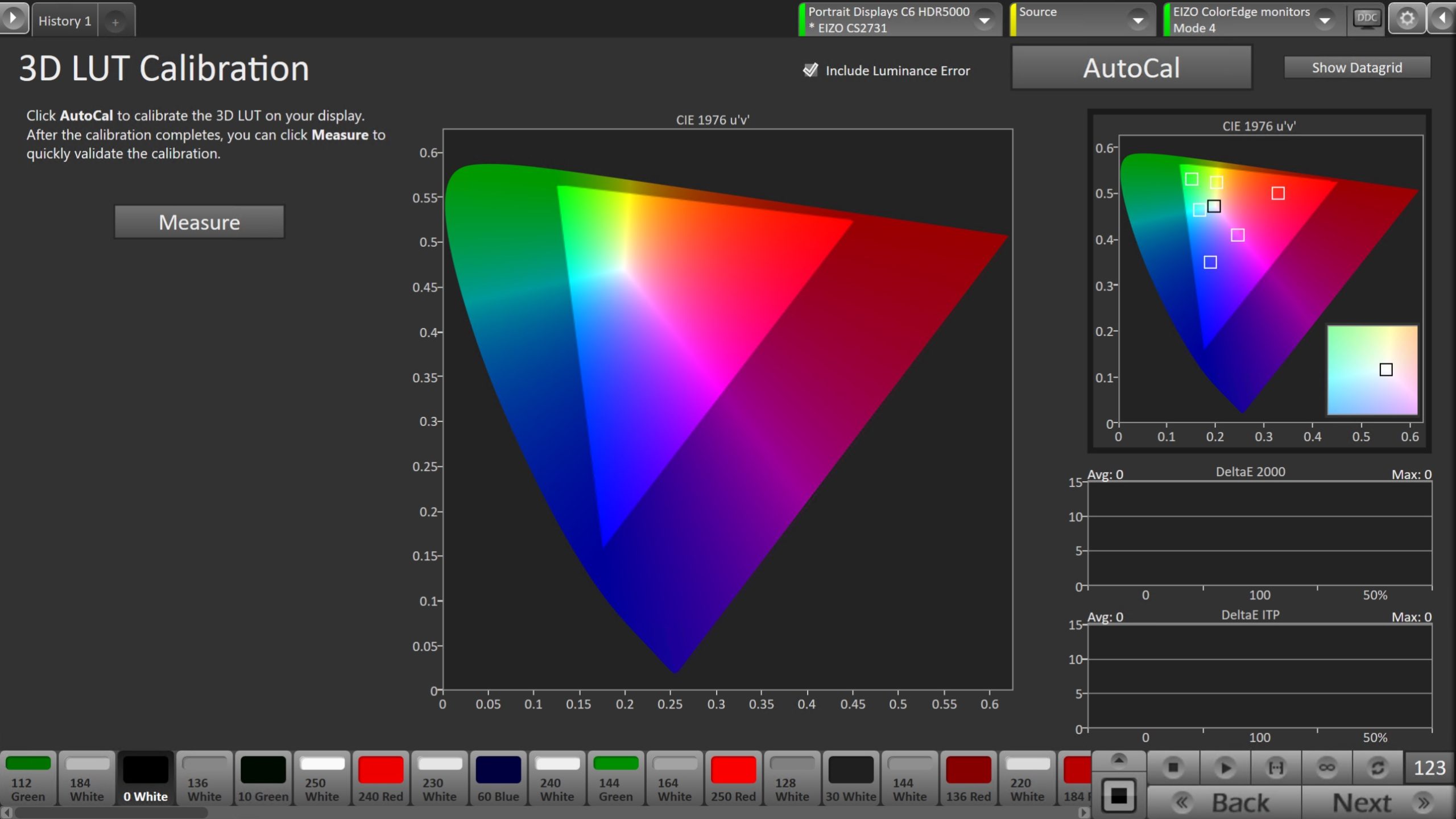
- Press the AutoCal button to open the AutoCal dialog
- Calman has multiple methods for creating a 3D LUT. For information about these LUTs see THIS ARTICLE.
- Confirm that 3D LUT Grayscale to Unity is checked
- Click OK to begin the colorspace AutoCal process
- When AutoCal is complete, press the Next button to proceed
Step 9
- In this step, you’ll take measurements of the calibration results.
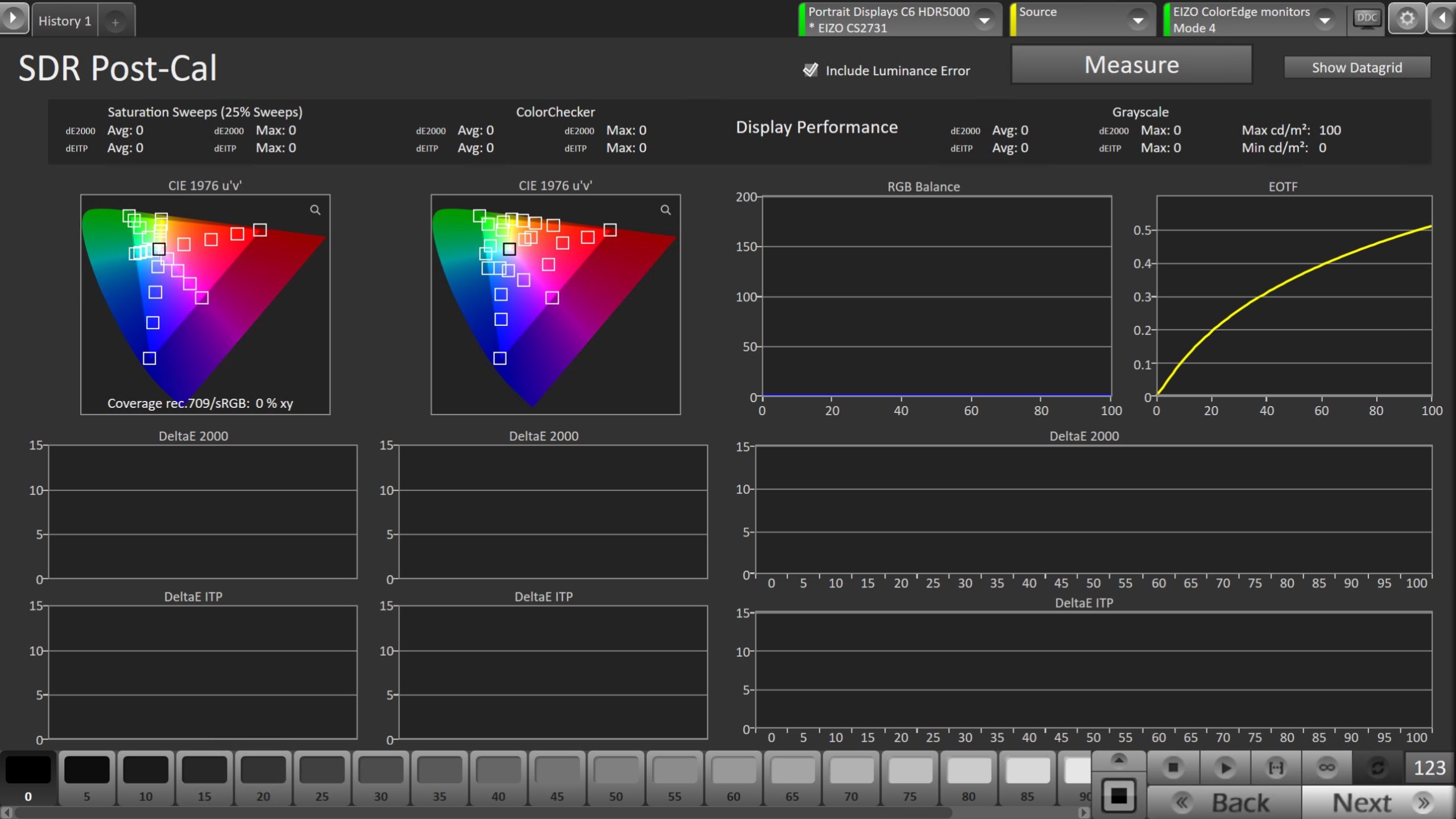
- To take Post-Calibration Measurements, click the Measure button to measure the display’s grayscale and color response.
- Click Next to proceed
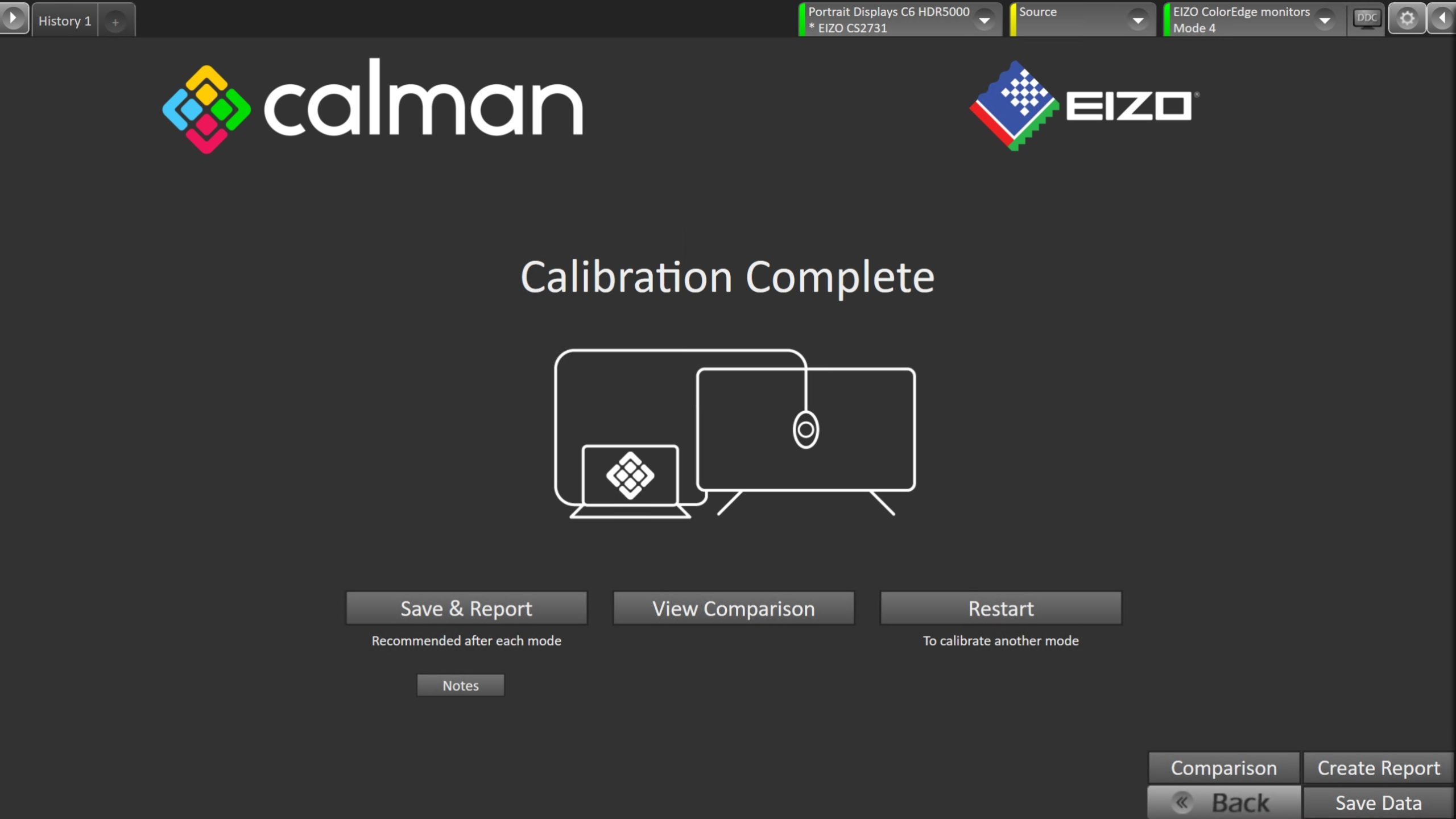
- On the Calibration Complete page, you can choose to…
- Save and Report
- Select Save and Report to generate the calibration report
- View Comparison
- Displays Pre and Post Calibration measurements of the calibrated mode side-by-side
- Restart
- Returns to the beginning of the workflow where a new mode or colorspace can be selected
- Note: Does not save workflow data
- Save and Report